Install Windows 7, Windows 8.1, or Windows 10 via USB flash drive using the Windows USB DVD Download Tool.
How to use the Windows USB DVD DOWNLOAD TOOL: This utility tool makes installing Windows 7 or Windows 10 via USB easy. You can choose to burn the ISO file to a DVD or the installation files directly to a USB drive. Once you have the programs installed, installing Windows 7 or Windows 10 via USB involves only four simple steps:
The first step is to select the ISO file.
This step involves selecting the ISO file you downloaded from the internet or created yourself. Click the Browse button to specify the location of your ISO file.
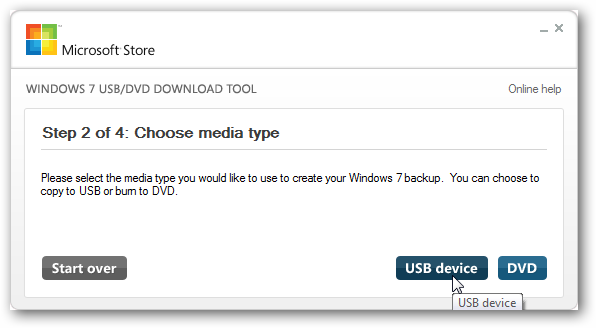
Step 2: Select the type of media.
This step lets you choose which device you want to save your Windows files to. You can select either a USB device or a DVD. To install via USB, select USB device; to install via DVD, select DVD.
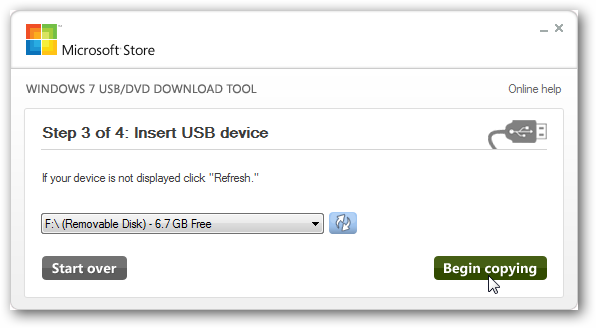
Step 3: Select a USB device or insert a blank DVD.
This step allows you to select the media you want to save the ISO file to in order to extract it onto that device.
3.1 If you select a USB device. You need to plug an empty USB into your computer, select the USB drive location, and choose “Begin copying.” ***If your USB is not empty or already contains files, it will ask if you want to continue. If you proceed, the files on the USB will be lost and cannot be recovered. Please ensure you have backed up your files.
3.2 If you choose DVD The program will prompt you to insert a blank DVD. Once inserted, press the "Begin copying" button.“
Step 4 is complete.
Once we've finished waiting for the file copying to complete, we'll reach step 4, the completion step. We can then use the resulting USB or DVD for installation.