
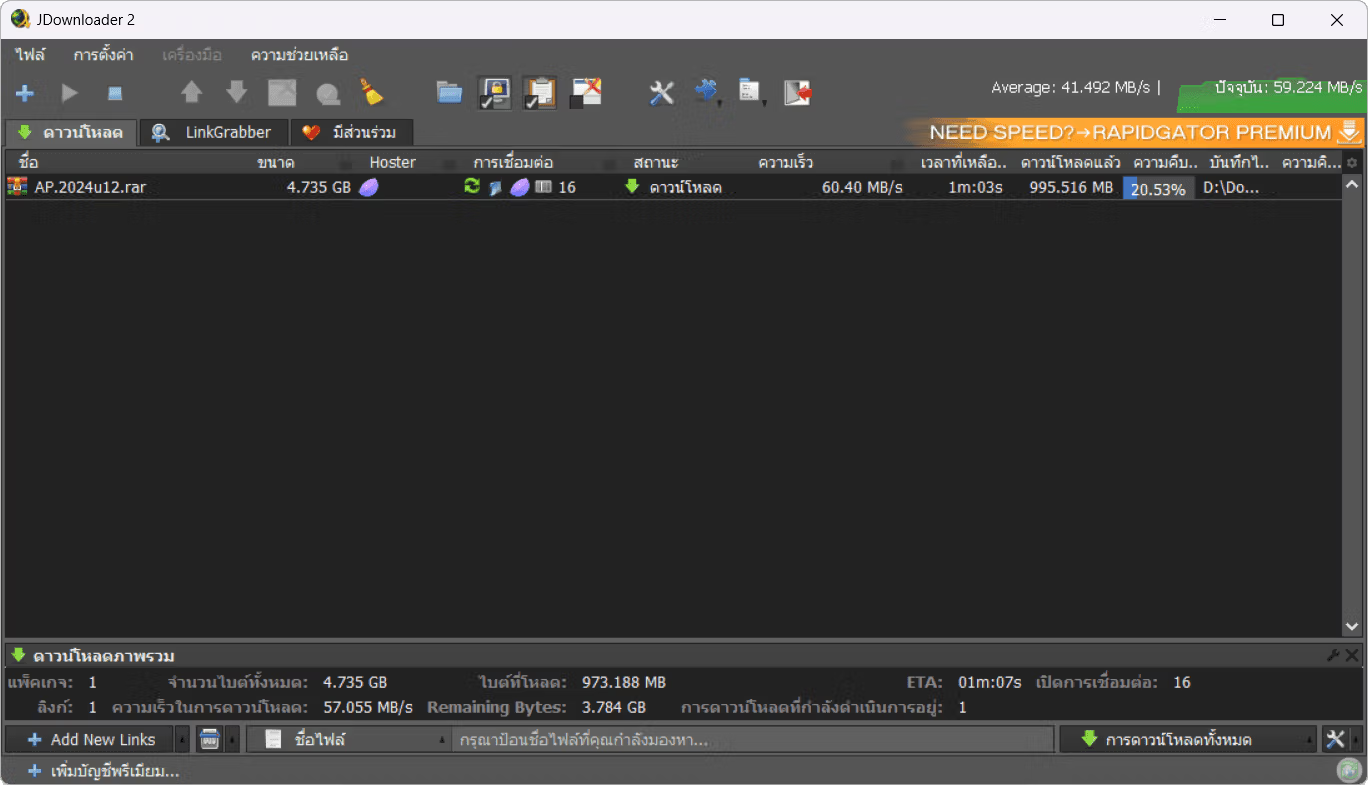
Instructions on how to use JDownloader 2 program.
JDownloader 2 is a program that helps download files from various file-sharing websites, including images, music, videos, playlists, and subtitles. Its main function is automatic downloading without needing to open the link or visit the download page. Simply copy the desired link, and the program will automatically detect the link and download the file. It quickly bypasses CAPTCHA and advertisements on file-sharing websites without any user intervention. Furthermore, it can be set to automatically extract zip and rar files after downloading is complete.
Before we discuss how to use it, we need to install the JDownloader program first. Here's a brief installation guide:
1. Install the program by downloading the file from...Link on the Catto website. (Be careful when downloading from other URLs, as you might accidentally download the regular version instead of the adware-free version. This could result in unwanted extras being installed.)
2. Use the tool "“JDownloader Pack”"To apply necessary settings, such as enabling High DPI support, setting the Thai language, setting dark mode, etc."
How to use JDownloader 2 to download files from various file-sharing websites.
1. Open the JDownloader 2 program. (If you use Custom Settings, the program will be minimized to the tray icon immediately when you open it.)
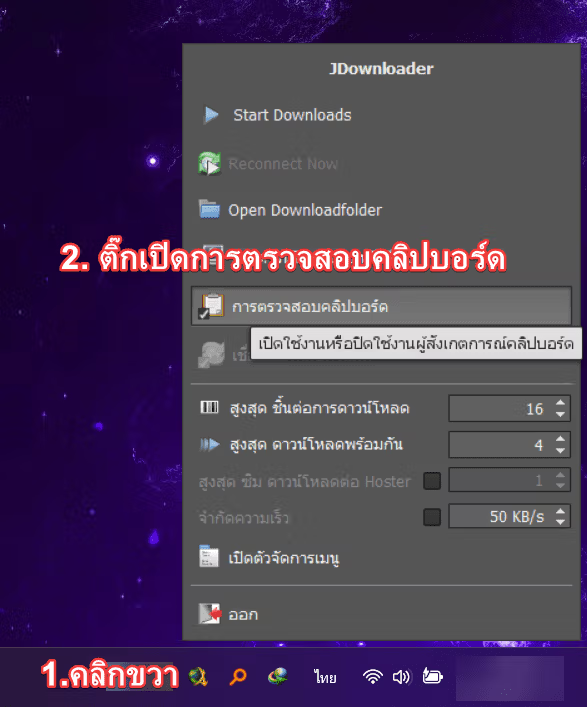
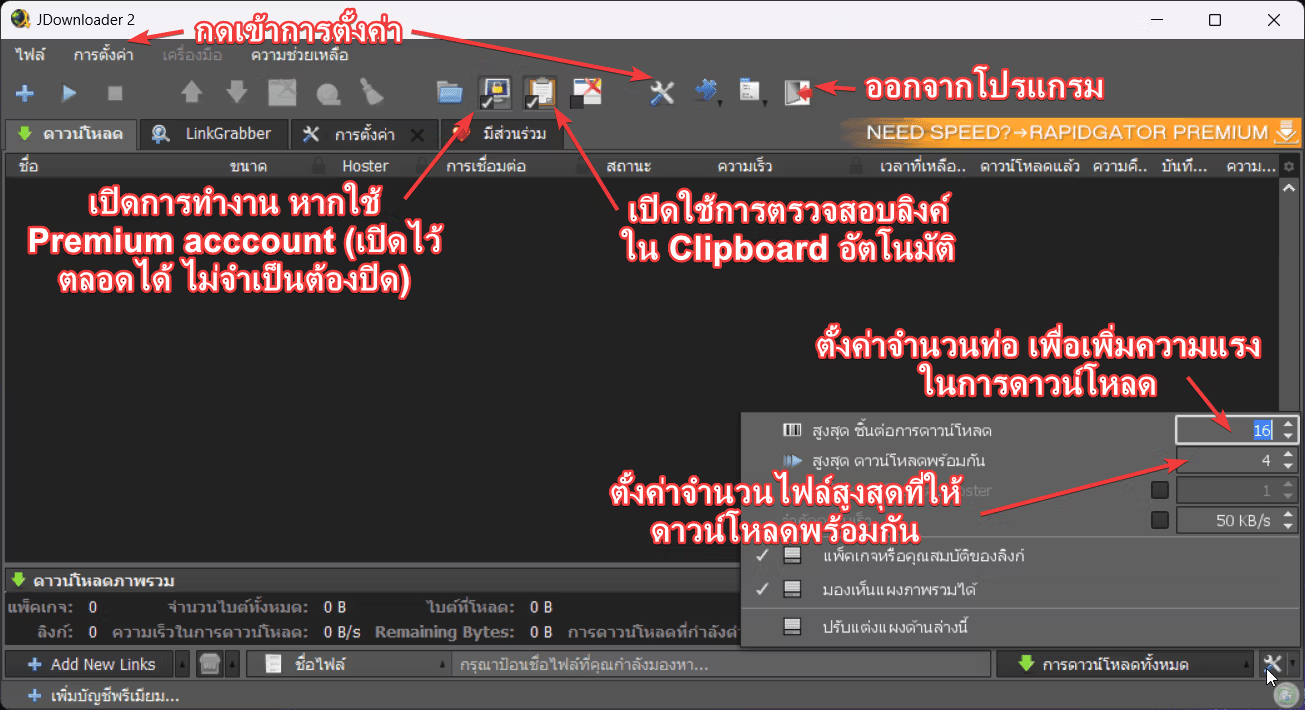
2. Right-click the Tray icon. For the JDownloader program > Select Enable clipboard inspection. (If you are using Custom Settings, these settings are already configured, so you can skip this step.)
3. Copy the link of the download you want. (Both URL and Direct Link can be copied.)
- URL link: These types of links usually require you to open the URL to access the webpage before clicking the download button, such as “https://gofile.io/d/G6MucN” or “https://qiwi.gg/file/KwSizBXn”.
- Direct Link: Links like these can usually be downloaded directly, such as “https://download.anydesk.com/AnyDesk.exe” or “https://dl.somesite.com/file/somefile.rar”, etc.
Both versions can be downloaded using JDownloader simply by copying the link.
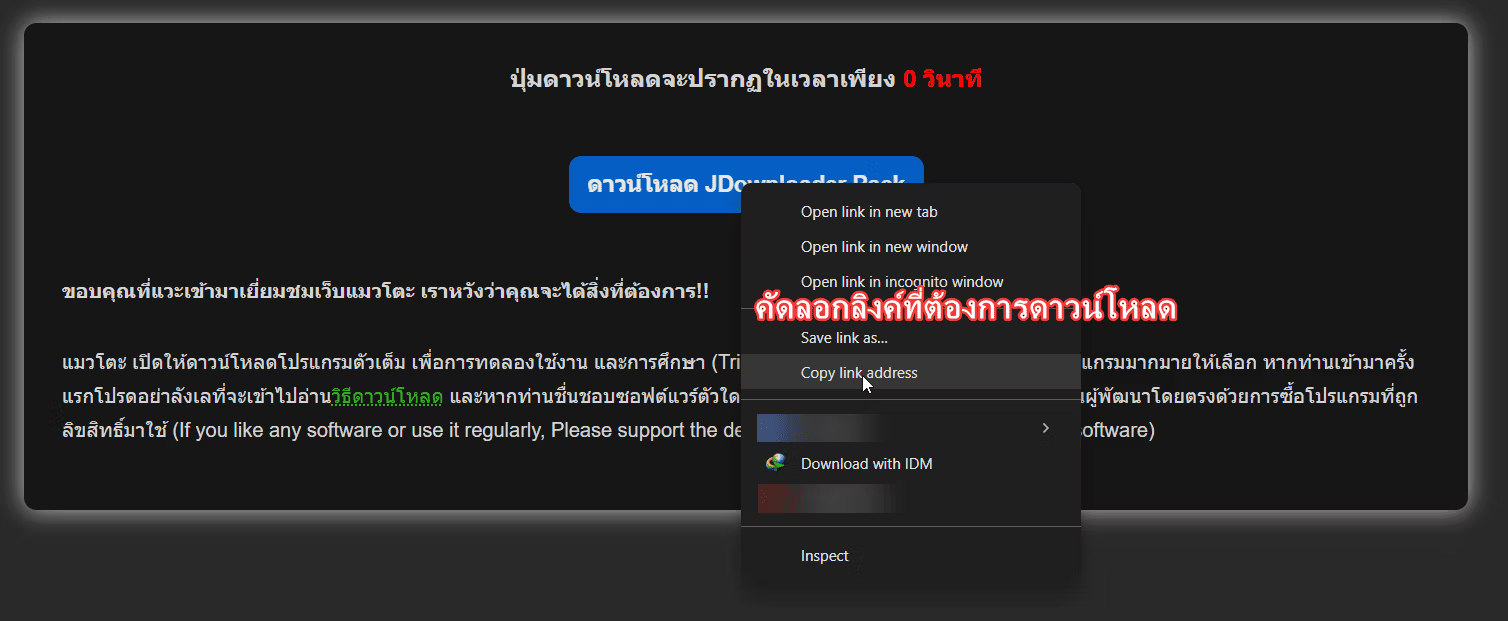
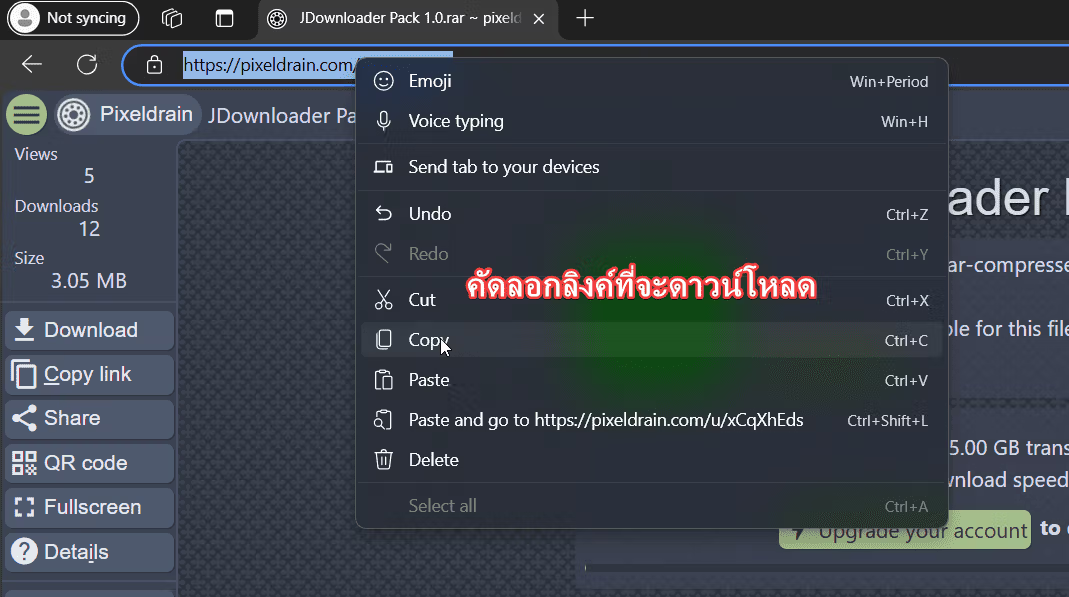
3.1) If you are using Enhanced (mawto) Settings, simply follow step 3 and the file will be downloaded automatically in a few seconds.
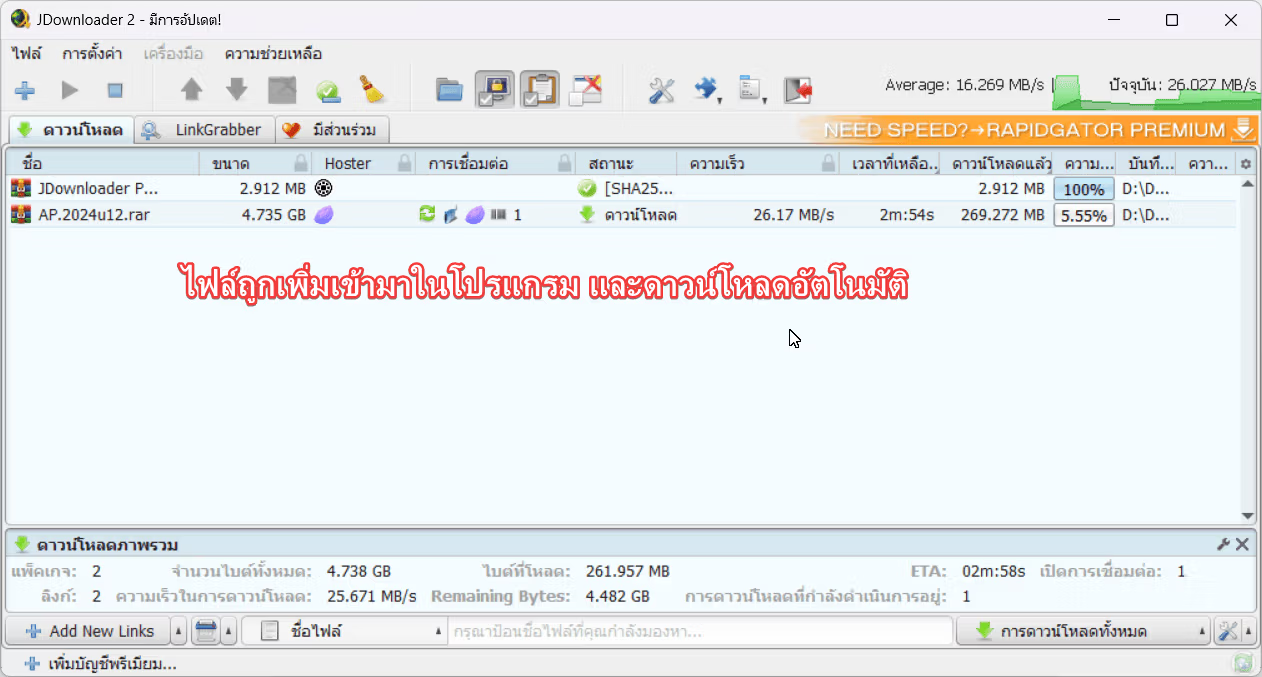
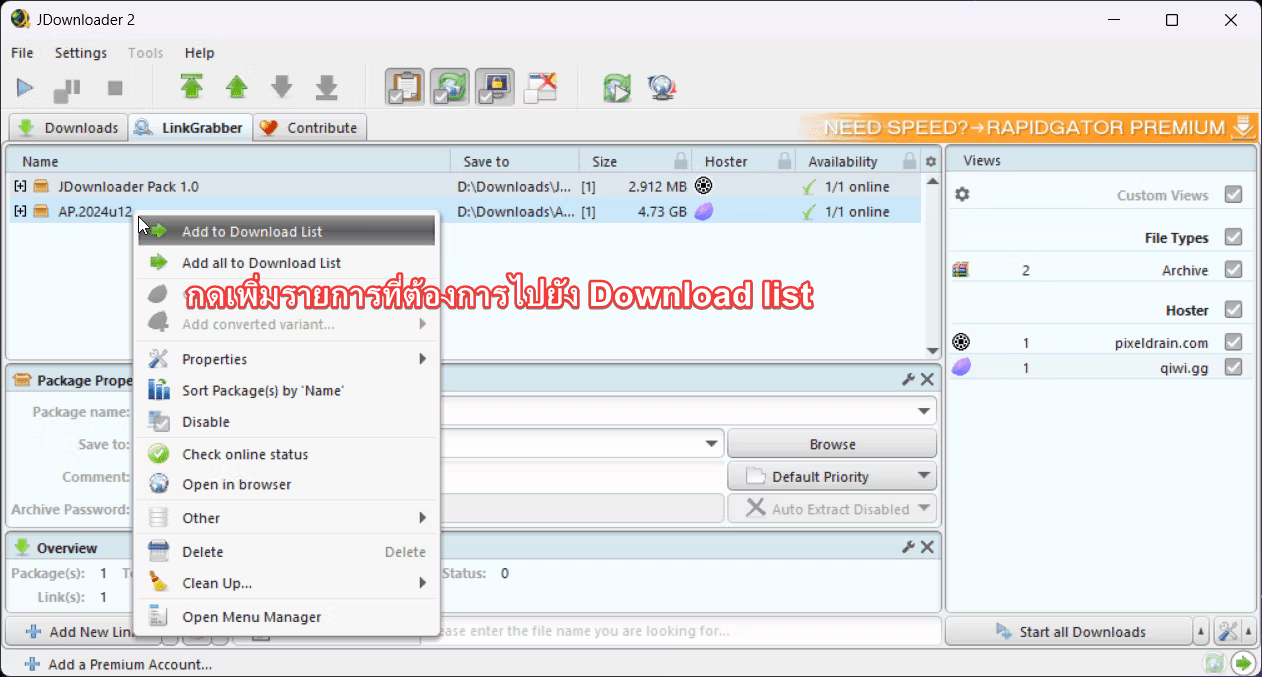
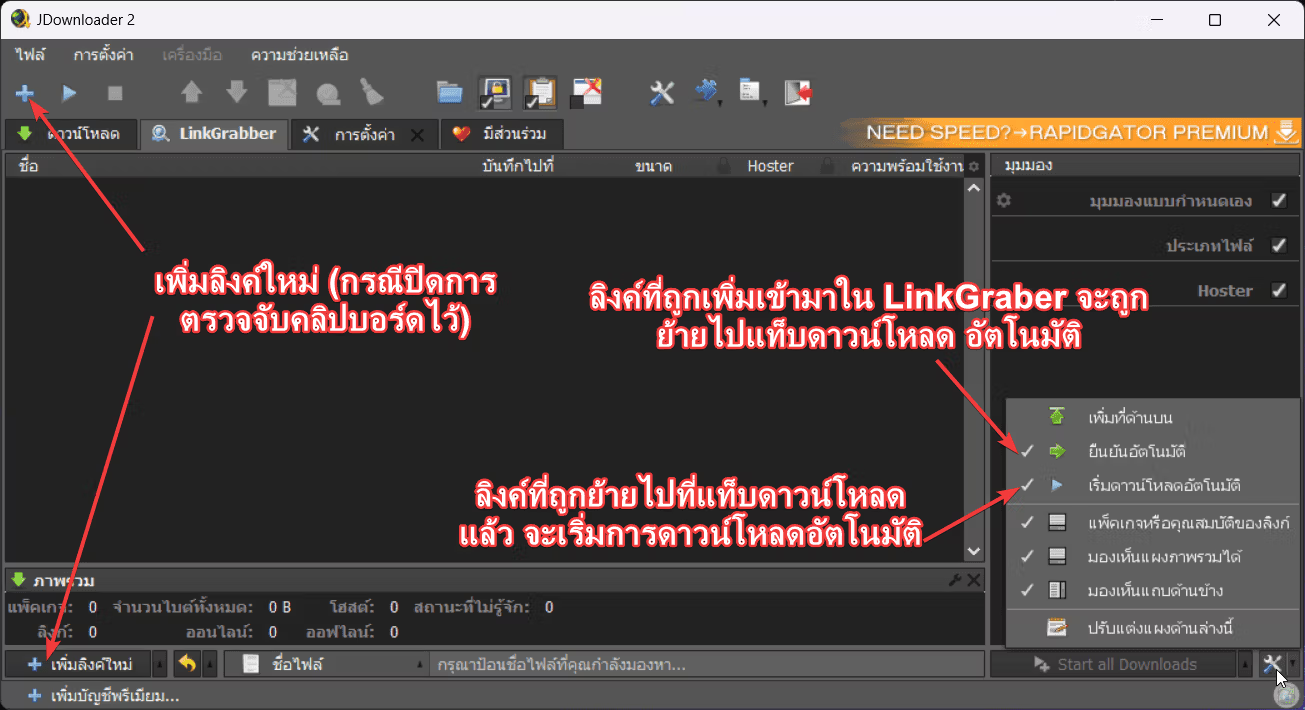
4. However, if you are not using the Enhanced (mawto) setting, the file will be added to the “LinkGrabber” tab first, so you can check if the added links are correct.
4.1) Open the program window by clicking or double-clicking the Tray icon > Go to the “LinkGrabber” tab > Right-click the desired item > Click “Add to Download List” to add it to the “Downloads” tab, then download it again in the “Downloads” tab.”
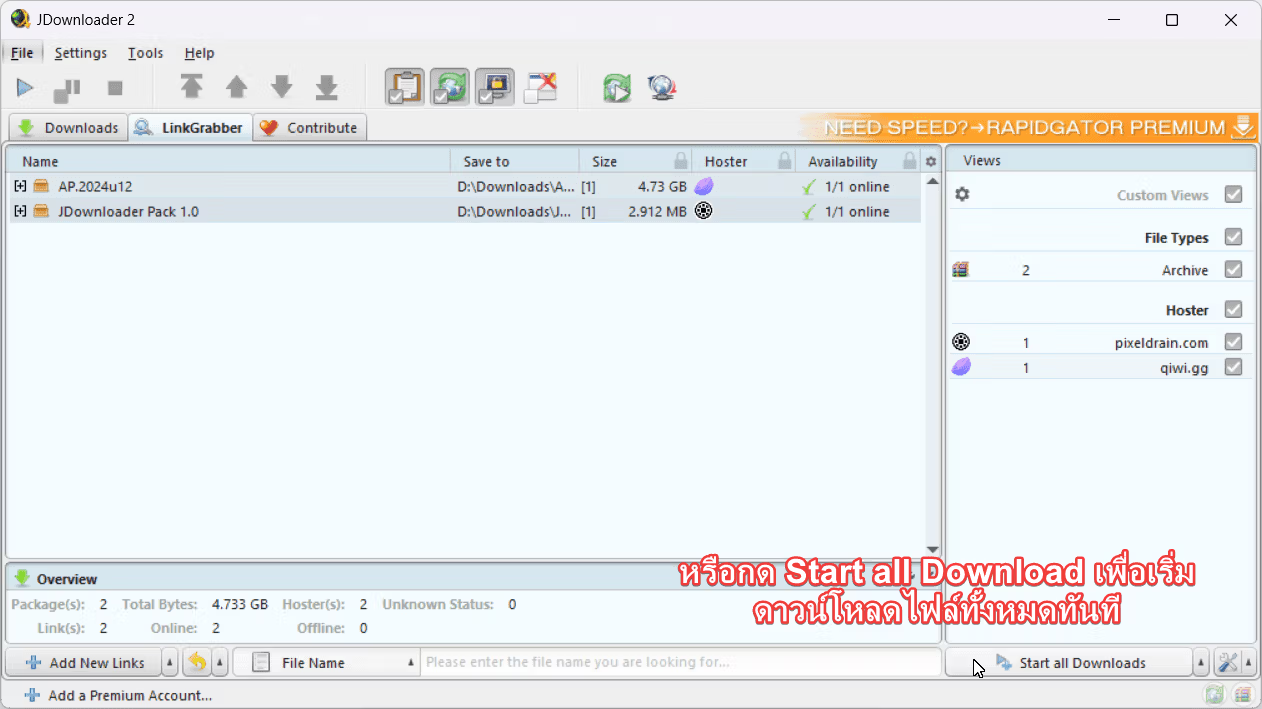
4.2) Alternatively, if you want to download all files, you can click the “Start all Downloads” button. This will allow you to download the files you need.
Caution: The program's default setting automatically extracts zip and rar files, so it will prompt you to enter the password for each file. (The Enhanced (mawto) setting disables this feature.)
Downloading YouTube videos
Downloading videos from YouTube with JDownloader is more difficult than using IDM, but it is definitely possible. You can download individual videos or playlists, and it can download video files, audio files, thumbnail images, description files, and subtitle files.
1. Before downloading from YouTube, you should disable "Automatic Verification" on the "LinkGraber" page to prevent automatic downloads, which can result in downloading unwanted files.
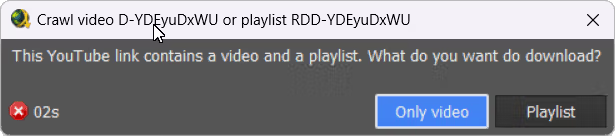
2. Copy the desired YouTube link, and it will automatically add that link to the "LinkGraber" page. (If you copy the link from a playlist, it will ask you whether you want to download just this video or the entire playlist; select your option.) In this case, we will select Playlist.
2.1) A list of what you can download will appear on the "LinkGraber" page. Uncheck the items you don't want to download, such as subtitles, images, etc. > Select your desired quality.
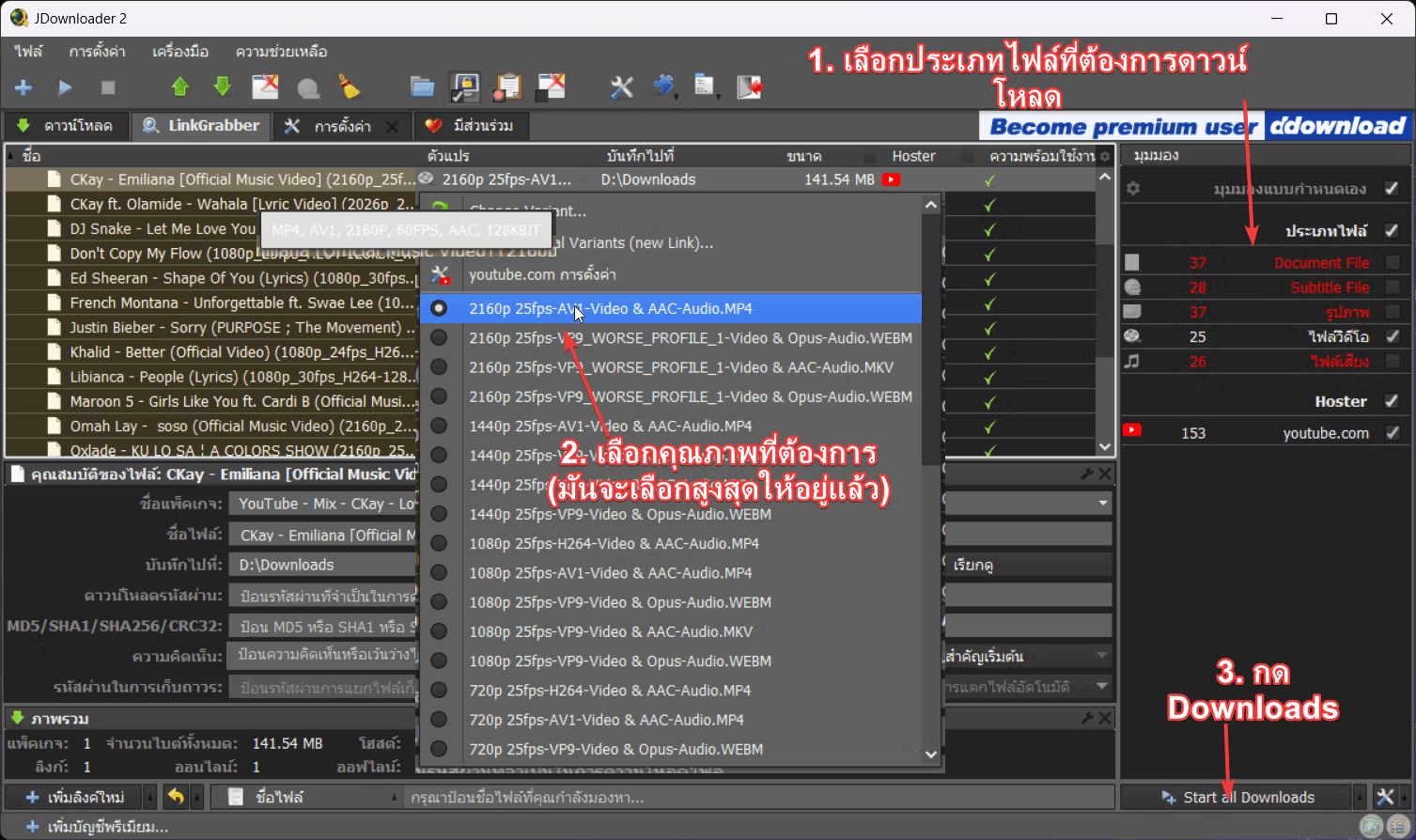
2.2) Once you have made your selections, press “Start All Downloads” (if prompted to install FFmpeg, press install).
Other settings in JDownloader.
Besides using this program to download files from various file-sharing websites, today we'll look at some other settings you should know when using JDownloader.
Home page settings and Downloads tab.
LinkGraber tab settings
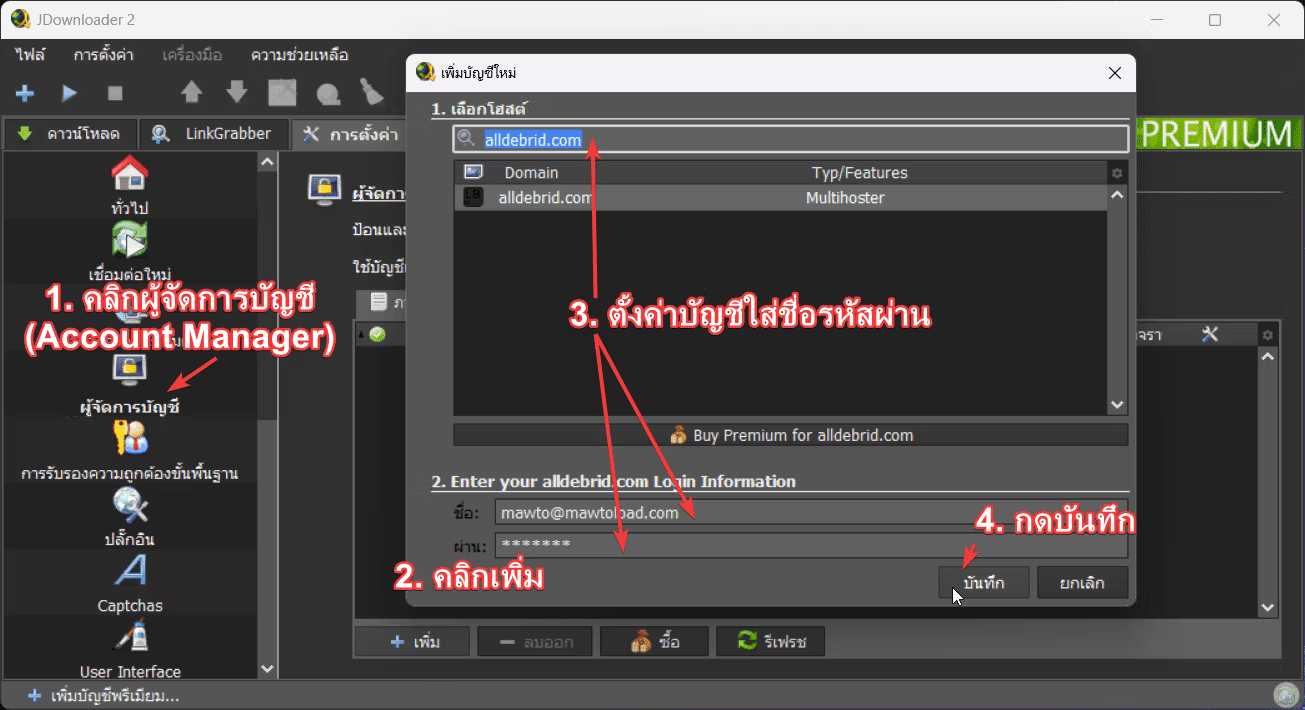
Setting up a Premium account on a file hosting website.
Configure file extraction.
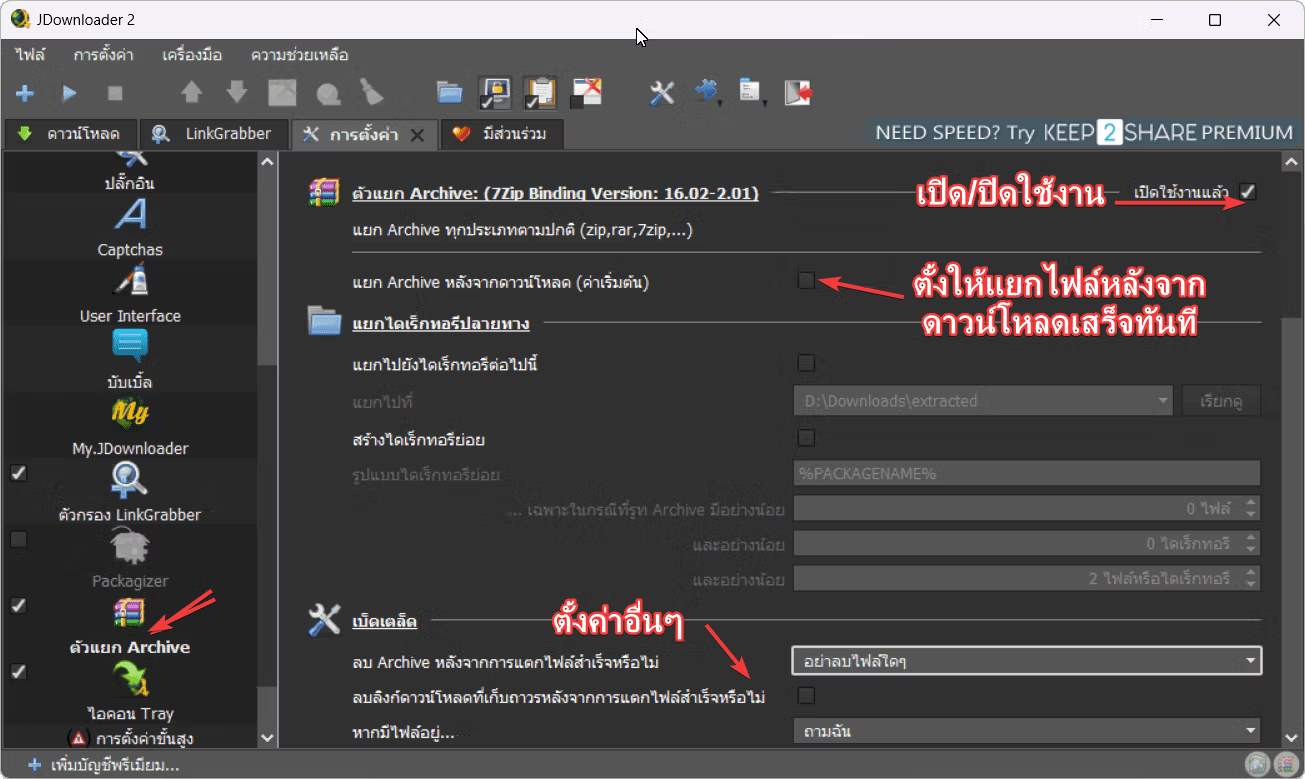
There are also advanced settings and many other customizable options. As you can see, this program is quite flexible. For regular users, adjusting the settings to their liking shouldn't be difficult. However, for beginners, we think this information should be sufficient to understand and use the program for various downloading purposes.