Hello everyone, fellow Mawto@Software members!
Today I will be demonstrating how to use Advanced SystemCare, a program that many of you are probably already familiar with.
First, let me state that I "do not recommend using all of its capabilities," but rather only some of them, which I have tested for over 3 years! Yes, 3 years! What's so exciting about that? Anyway, I'll say that Advanced SystemCare's capabilities are only a part of the tips we use to maintain and optimize your computer.That's all. All these tips will definitely be available to those who follow our website, whether on mawtosoftware.com, Facebook, Twitter, or Google+, very soon.
The main and most prominent feature of Advanced SystemCare is Registry Fix. Advanced SystemCare is a highly effective program for finding and repairing corrupted Registry entries, which result from daily use such as downloading, deleting, installing, and uninstalling programs. Why should we remove these corrupted entries? Because if we don't, we'll be wasting system resources processing those registry entries, leading to slower performance (not just sluggishness), and impacting the security and stability of our computer.
However, this guide is provided for general users to study and use only as a guideline, to ensure that they can use the program without problems. Those who have some prior knowledge are welcome to make further adjustments.
Okay, I've explained enough. Let's look at how to do it.
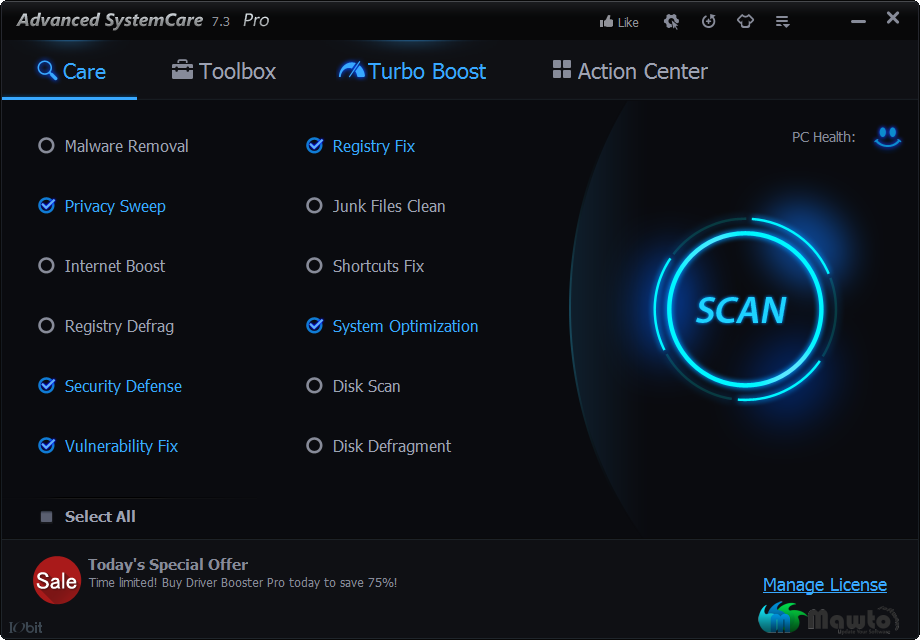
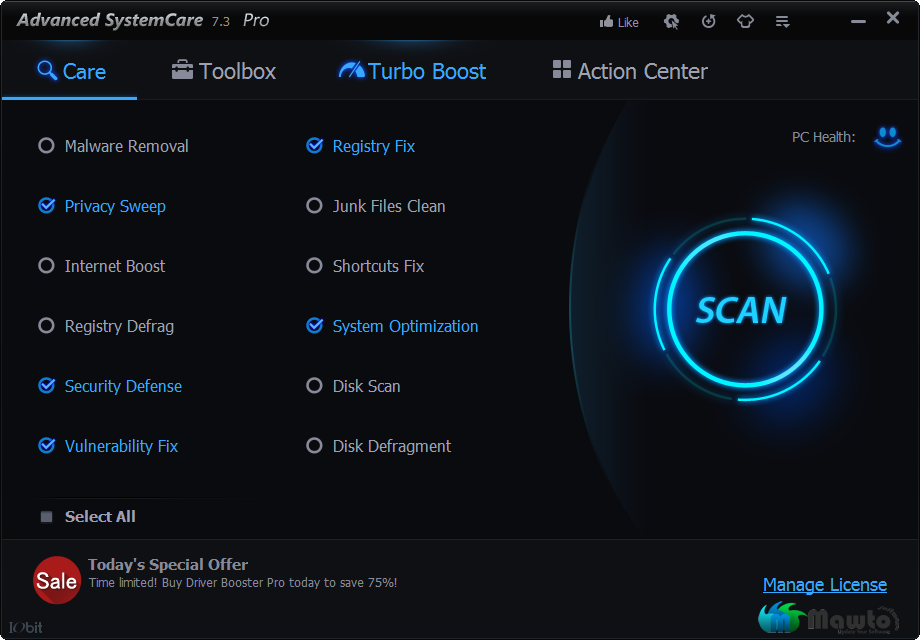
This is what the Advanced SystemCare interface looks like. It's pretty nice.
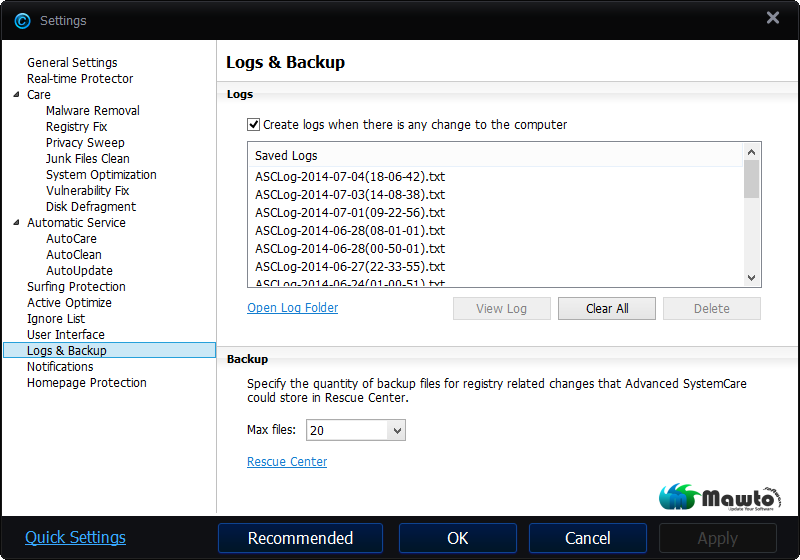
First, let's see how to set this up. Go to Settings…
You'll find the first section, General Settings. Set it as shown in the image. You'll see that I've disabled everything, such as minimizing to the tray when the program is closed, opening automatically when the computer starts, and enabling Performance Monitor, because I want the program to only run when I need it to.
Next, Real-time Protector will also be turned off.
Next, disable Malware Removal as well. We'd rather use a specialized program like Malwarebytes Anti-Malware.
Next up is Registry Fix, our hero, no doubt about it. Make sure it's enabled.
For Privacy Sweep, I chose to manually delete browsing history, cache, and cookies. Therefore, I have disabled this feature in all browsers. Everything else is enabled (scroll down).
We won't be using Junk Files Clean anymore. You can set it however you like. I prefer to use more efficient programs for removing junk files, and I use three of them together: Diskmax, CCleaner, and WiseCare.
Next, System Optimization. This part will depend on each individual machine.
No changes are needed for the Vulnerability Fix function, and neither is Disk Defragmentation, as we will be using a more powerful, specialized program like PerfectDisk.
Next, we won't use AutoCare either. Select "Do not". AutoClean, Surfing Protection, and Active Optimize are also excluded.
Next is Homepage Protection, which is also disabled. For internet security, I choose to use Avast Internet Security and extensions like Adblock Plus and Ghostory, along with being careful and cautious when using the internet.
Once this step is complete, press OK.
Next, we'll check the Services, Startups, Context Menus, or Task Scheduler to see if any Advanced Systemcare programs are still running (we want to completely remove them so they only run when needed). We'll use Yamicsoft Windows XP Manager, Windows 7 Manager, or Windows 8 Manager, depending on the machine. I'm using Windows 8 Manager, which also works with Windows 8.1.
1. In Service Manager, you will see two services. You can disable or delete them without any impact on the program.
2. Startup: You don't need to look at this section, as it's already configured according to the settings we've defined in the program.
3. In the Context Menu Manager, delete any ASC elements you see.
4. TaskSchedulerManager is also for deletion; it was created to delete.
The setup part is now complete. It was exhausting, but that's okay. I'm willing to do it for the Mawto@Software community.
Next up are the steps for using the program. Finally!
Don't overthink it. Just follow the image instructions and press Scan. But, but, don't forget to tick Automatically Repair. leave Thank you.
Once the scan is complete, the program will display the results as shown in the image. We'll look at the Performance issues section; you don't need to touch the other settings as my machine is already configured, so the image might not be as clear as it should be. For those unfamiliar with this program, don't panic if it shows thousands of Browser issues; this is because it's helping to patch vulnerabilities and increase the security of your browser.
For Windows XP and 7, you can set everything as per the program's default settings. However, for Windows 8 and 8.1, exclude these two, as the default settings are already optimal and don't need changing. Then, click Repair.
Once the repair is complete, the program will show a summary of what we have done and how much we did.
Finished! Yay! I'm overjoyed! So that concludes the Advanced SystemCare usage guide by Mawto@Software. However, this guide is based solely on experience and a little knowledge. You don't have to follow everything I've said; you can choose what you need. Finally, I sincerely hope this little bit of knowledge will be useful to everyone. And since the content is extensive, I apologize for any omissions. Goodbye!