The officially released version of Windows 11 is available as a free upgrade to anyone with Windows 10 and a PC that meets Microsoft's minimum hardware requirements. However, not all machines that meet the minimum hardware requirements will be able to upgrade via Windows Update on October 5th; some may have to wait until 2022.
Today, Maewto will teach you how to upgrade from Windows 10 to Windows 11. You can update via Windows Update, or if you've checked and there's no upgrade available, you can use the Windows 11 Installation Assistant. For a clean install, you can download the ISO file or use the Media Creation Tool to create a bootable disc or USB drive. Alternatively, if you want to upgrade to Windows 11 without losing data, programs, or work, you can install it directly from the ISO file without needing to burn it to a disc or USB.
First, let's talk about the minimum system requirements to install Windows 11.
Check your PC's compatibility with Windows 11.
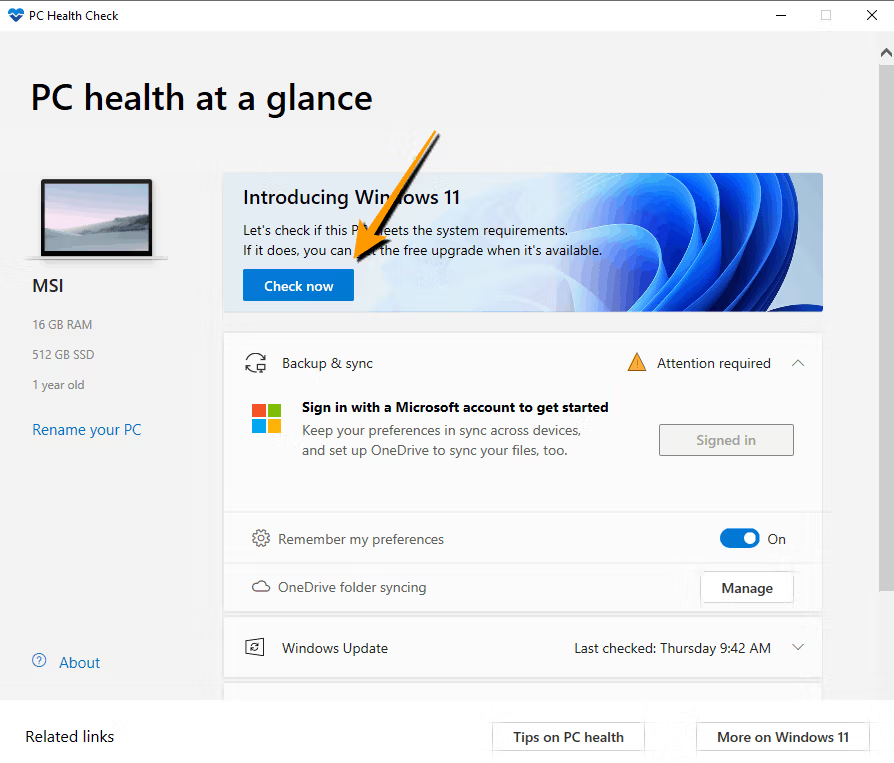
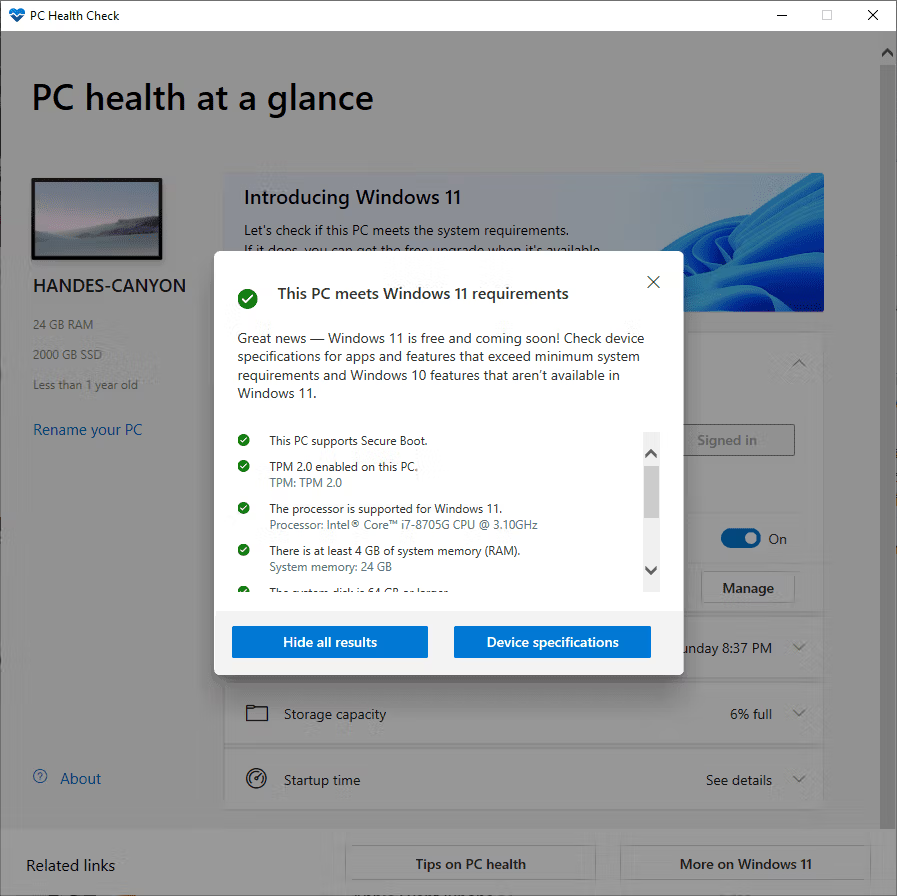
You can check the compatibility or minimum specifications required to install Windows 11 using... Microsoft's PC Health Check app This app will tell you if your PC is eligible to upgrade to Windows 11 and what features are missing. If your PC doesn't meet these requirements, it won't show an update prompt in Windows Update. However, if you really want to upgrade, you can force a upgrade using an ISO file or the Media Creation Tool, as we'll show you below.
Make sure to download the correct version. There are three supported versions: Windows 64-bit, Windows 32-bit or Windows on ARM, and Windows 10 S Mode. The simple process is to install the program > click Check Now > see the results.
Four methods for installing/upgrading to Windows 11.
As mentioned earlier, there are several ways to update or install Windows 11. You can update via Windows Update, or if you've checked there and it's not listed as an upgrade, you can use the Windows 11 Installation Assistant. For a clean install or if you need to upgrade on a machine that doesn't meet the minimum requirements for Windows 11, you can download the ISO file or use the Media Creation Tool.
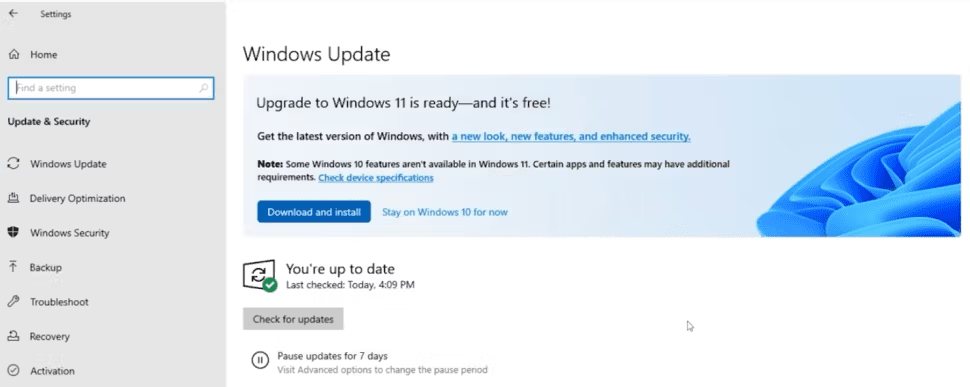
Upgrade to Windows 11 via Windows Update.
Go to Settings -> Update & Security. If you see the message “Upgrade to Windows 11 is ready,” your computer is ready to upgrade. Click Download and Install.
How to upgrade to Windows 11 using the Windows 11 Installation Assistant.
If your PC meets the Windows 11 hardware requirements but Microsoft hasn't sent you the upgrade yet (i.e., it's not listed as an update in Windows Update), the easiest way to get the upgrade is to use Microsoft's Windows 11 Installation Assistant.
- Go toWindows 11 Download Page
- Look for the topic "Windows 11 Installation Assistant" and click "Download Now".
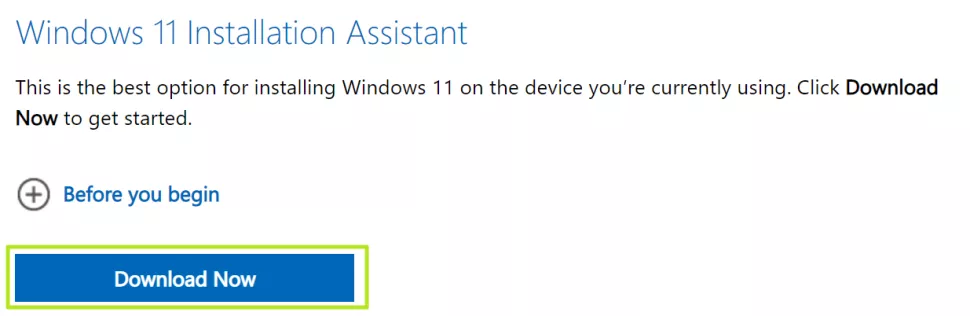
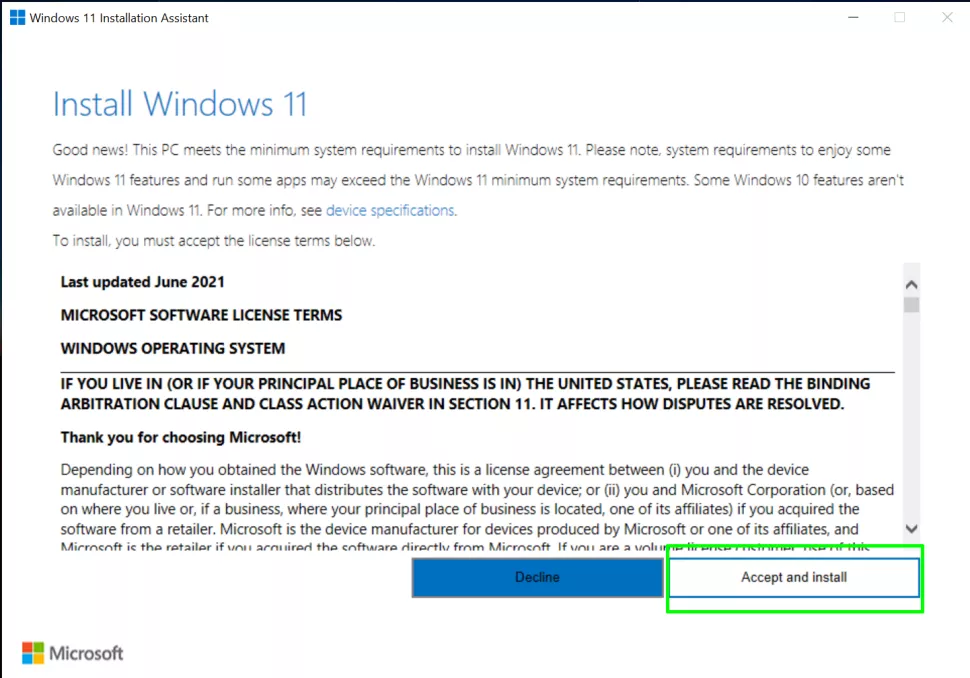
3. Run the downloaded Windows11InstallationAssistant.exe file, then click Accept and Install.
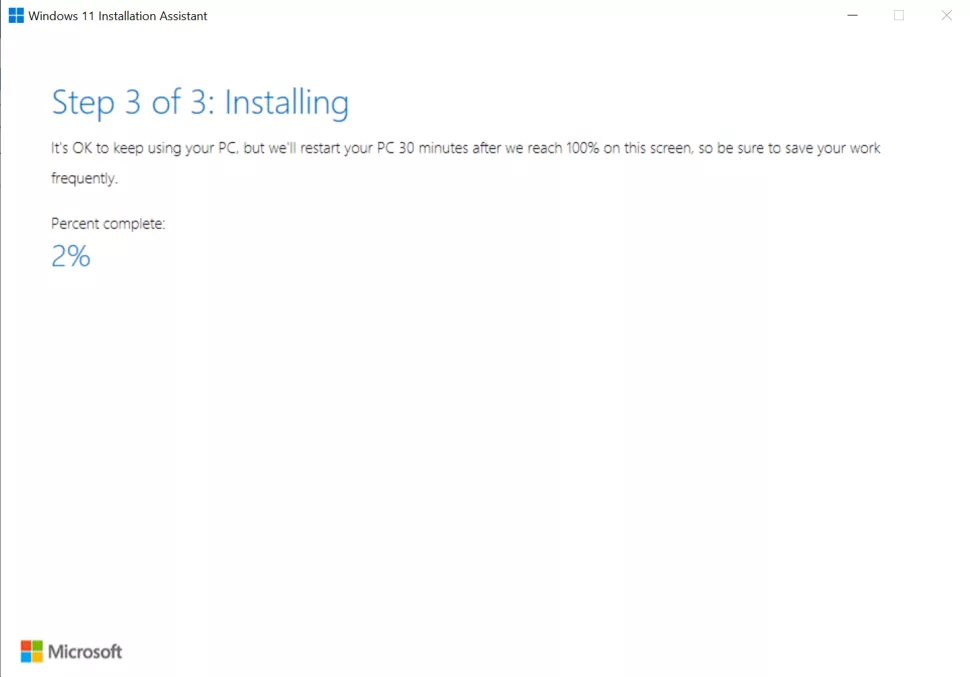
4. The installation will take several minutes to download and install. Keep an eye on the screen periodically and restart your computer when prompted. The computer will take several minutes to install and may restart itself 2-3 times before the installation is complete.
Using Windows 11 Installation Media to force an upgrade or perform a clean install.
This method creates a bootable USB drive for installing Windows 11. This bootable USB flash drive can be used to force an upgrade without losing data and programs, even if your hardware doesn't meet all the requirements, or to perform a clean install. You will need a drive with at least 8GB of capacity, and all data on it will be completely erased.
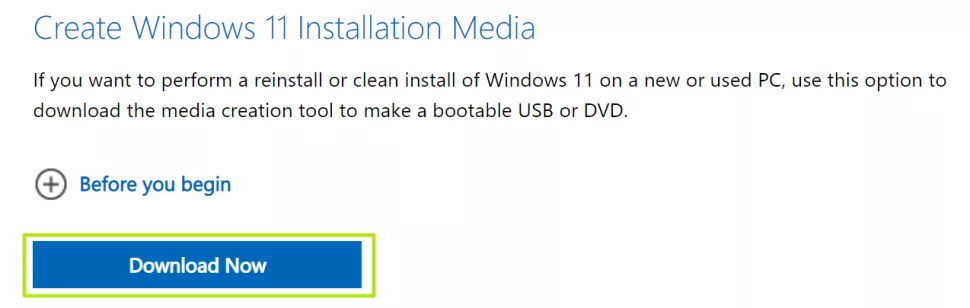
- Go toWindows 11 Download Page Look for the Windows 11 Installation Media and click Download Now.
2. Insert the USB flash drive and run the MediaCreationToolW11.exe file > Click Accept > then select your language and click Next.

3. We can choose to create an ISO file to burn to a disc or simply put it on a USB flash drive. When upgrading from Windows 7, we might have needed to burn it to a disc first before installing. However, modern Windows installers no longer require this. We can upgrade or install Windows, both in a clean and a preserved version, without burning to a USB. A simple method is to open the ISO file and install directly. Let's take a look.
In this step, select the ISO files and then click Next. A window will pop up asking which drive to save the files to; save them to drive D: only.

Wait until the download is complete.

4. Mount the ISO file using Windows Explorer (this is essentially opening the ISO file with a regular double-click). Then run the setup.exe file and click Next.

5. The installer will check your system. If it finds that your system does not meet the minimum requirements, such as having insufficient CPU capacity but still having a TPM, it may display a warning screen advising you not to upgrade. If you see this screen, click Accept. However, if your computer meets the requirements, you will not receive this warning.

6. Click Accept on the license terms page and wait for it to download a few additional updates.
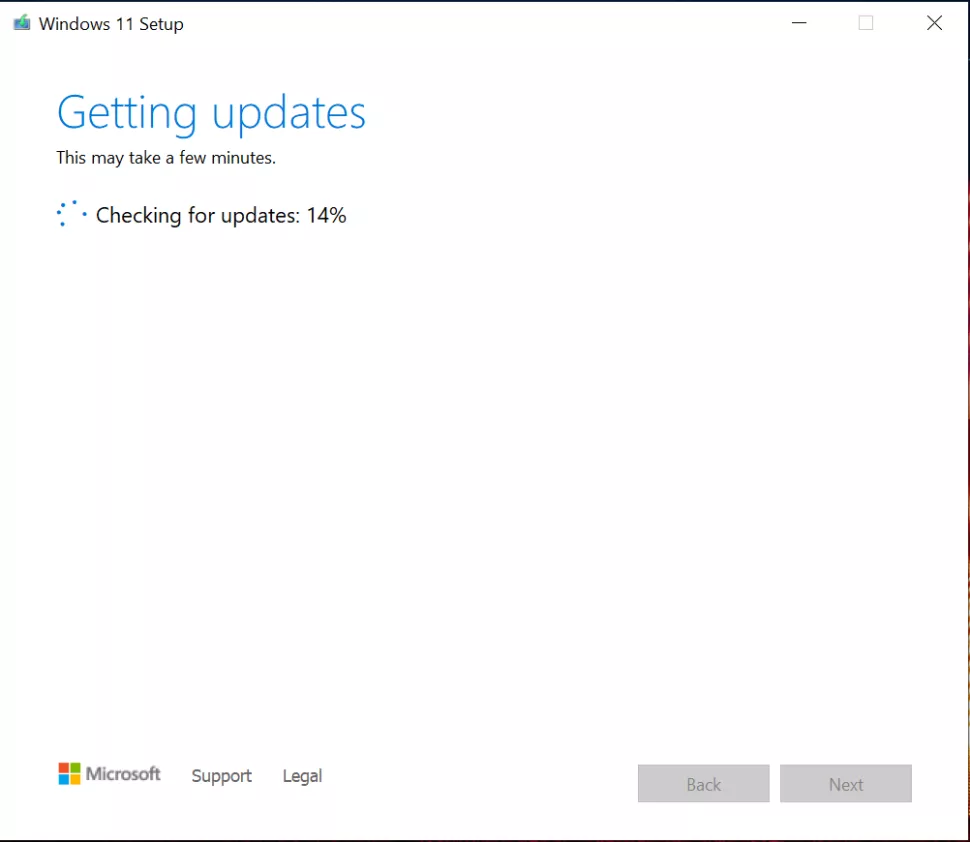
7. On this page, you can choose whether to perform a clean install or keep your data and programs. If you want a clean install, click "change what to keep" and uncheck "Keep personal files and apps." If you want to keep all settings, programs, and files, simply click "Install."

The installation process will take several minutes and your system will reboot, perhaps more than once. After that, you'll have Windows 11 ready to use.
How to upgrade to Windows 11 by downloading and using a Windows 11 Disk Image (ISO).
Personally, I think this method is the most convenient and fastest, and it can be used in many cases, whether upgrading from Windows 10 or from Windows 11 Dev/Pre-release/Beta, on machines that meet the minimum requirements or not. Furthermore, it can be installed directly on the machine or transferred to a USB drive or disc to upgrade other machines (that have a license). But what about machines using pirated software? Can they be upgraded to Windows 11? I'll whisper that...mayYes, if you're using a cracked version of Windows 10 with a Digital License.
- Go toWindows 11 Download Page Look for the Windows 11 Disk Image (ISO) and click Download.
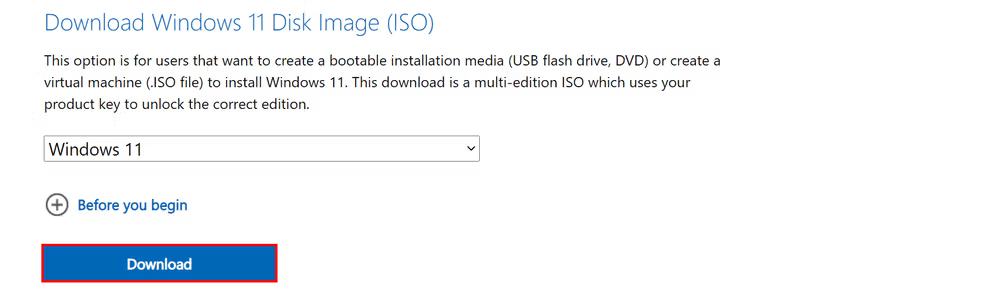
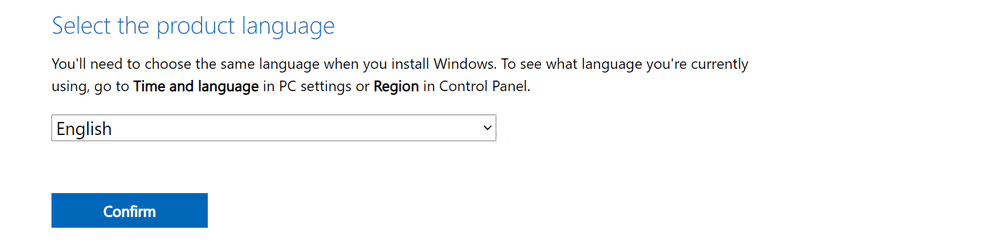
2. Under "Select the product language," choose your desired language and then click Confirm.
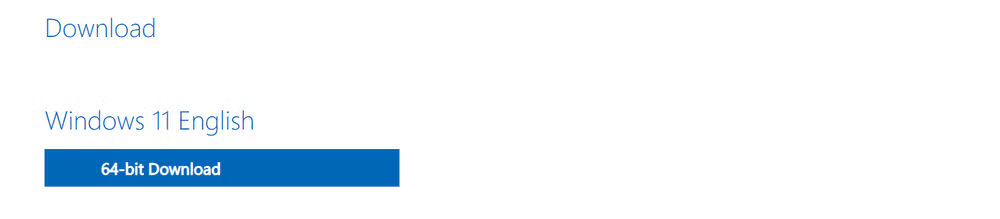
Then press the 64-bit Download button. A file will appear for download. Save it only to drive D:.
3. Mount the ISO file using Windows Explorer (this is essentially opening the ISO file with a regular double-click). Then, follow step 4 of the Media Creation Tool instructions above.