
How to convert an image file to text using Google Docs in Google Drive.
The capabilities of Google Docs within Google Drive are constantly being improved. Currently, we often encounter problems such as having text documents that cannot be copied because they are images or PDF files that cannot be copied, especially in the Thai language. Even using text conversion programs may not be able to produce a complete or correct conversion. Therefore, today, Maewtoload has prepared a method and steps to convert text in images, whether English or Thai, into actual copyable text. Let's get started!
[toggle title="How to convert images to text - click here" state="close"]
Requirements
1. If we want to copy text from...book Please scan the book or take a clear and accurate photograph, ensuring the text is not distorted. However, if you wish to copy text from the file, please do so. PDF The encrypted text cannot be copied. Please take a screenshot and save it as an image file (PNG format is recommended).
2. The requirements for successful text conversion using 100% are: a clear contrast between the text background and the text itself (e.g., a truly white background with black text), and the resulting image must not be excessively distorted. If distorted, it must be straightened using image editing software.
Text conversion process.
1. Once you have the images that meet the requirements, upload them to Google Drive, which every Google or Gmail account holder already has.
2. Right-click the image > Open with > Google Docs.
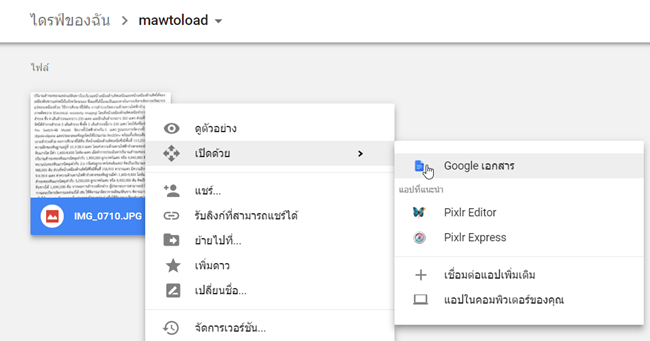
3. A Google Docs window will pop up, and Google Docs will automatically convert the text for you.

4. You can copy and use the text directly.
[/toggle]