
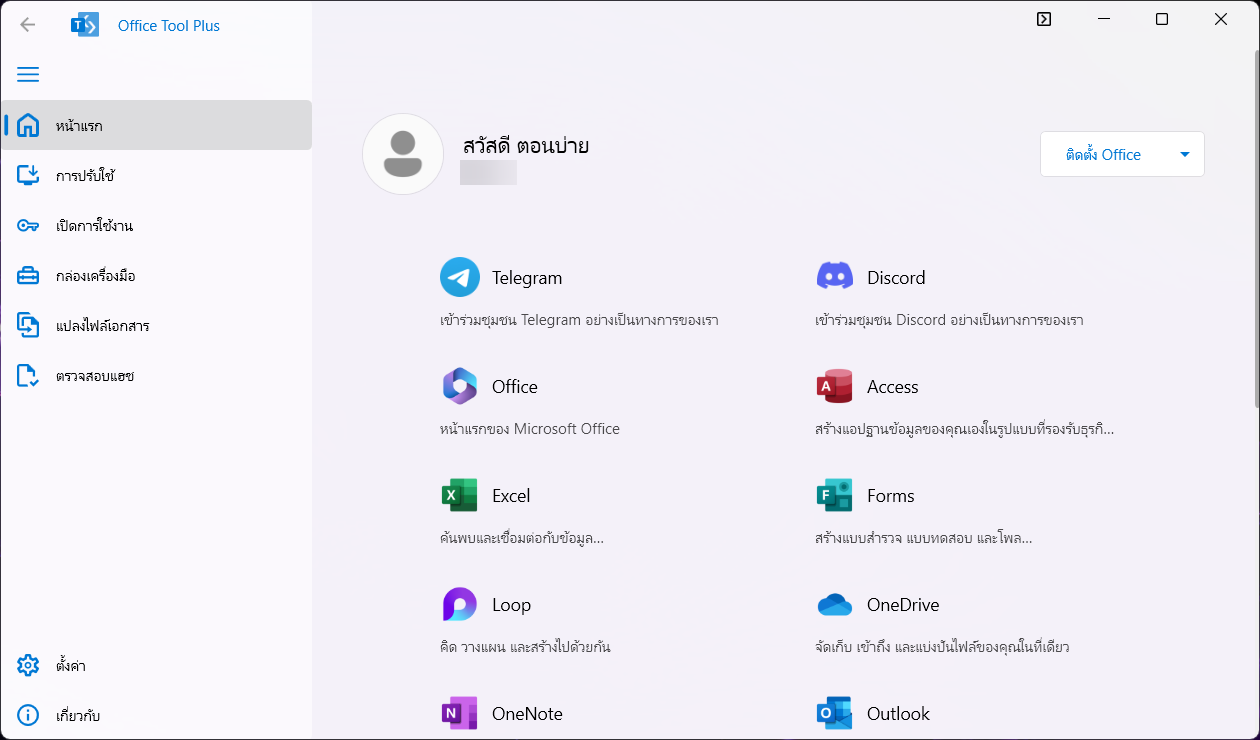
Office Tool Plus This is a powerful and easy-to-use program for managing Microsoft Office installations. Developed based on Microsoft's Deployment Tool, it adds a user interface and functions to make downloading, installing, customizing, and activating Office convenient. It also integrates download engines (such as Thunder and Aria) to accelerate Office file downloads, resulting in faster installations. The program is free, ad-free, and secure (the code is open-source on GitHub). It supports multiple Office versions, including Microsoft 365 (Office 365), Office 2016/2019/2021/2024, as well as Visio and Project, in both retail and volume license versions. Furthermore, it manages Office activation, including online activation, phone activation, and KMS server configuration for volume licenses (the program does not perform any cracking, but provides tools to facilitate proper activation settings).
How to use Office Tool Plus
To use it, simply select the topic you want:
Program overview and key features.
Program overview and key features.
Office Tool Plus offers a variety of core capabilities to help you manage Office efficiently, including:
- Download the Office installer. You can download all versions and languages of Office installation files directly from Microsoft servers through the program at faster-than-normal speeds (using a special download engine).
- Install or customize Office as needed. The interface allows you to select the software suite version (e.g., Microsoft 365 or Office LTSC 2021), choose the suite type (e.g., Professional Plus, Standard), select only the Office applications you want to install (e.g., install only Word, Excel, PowerPoint), and choose your preferred language. Additionally, you can install supplementary software like Visio or Project later.
- Create an installation configuration file (Config). The program can create XML configuration files for custom Office installations and export these files for use on multiple computers or for future use. This is useful for organizations that need to install many Office applications with the same settings. Additionally, the settings can be saved as an ISO file with a silent installer for distribution.
- Update or fix the installed Office program. This tool helps manage the update channel for your installed Office, allowing you to upgrade or downgrade Office versions without reinstalling (e.g., switching from the Current Channel to the Beta Channel or reverting to the previous channel). It also allows you to add or remove sub-programs or language packs from your installed Office (equivalent to modifying an installation).
- Uninstall Office and clean up your system. There are tools available for uninstalling all versions of Office from your computer, including the following functions: Force delete If a normal uninstallation isn't possible, there's also the option to remove Office installed from the Microsoft Store (the version pre-installed with Windows 10/11) and clear any old activation license data. This will ensure a clean system ready for a fresh installation.
- Office Activation Tool There is a built-in tool for managing Office licenses and activation. It allows you to install product keys, set up a KMS server for Office Volume Licenses, perform online activation, or prepare activation codes via telephone (by calling Microsoft).
- Built-in Office troubleshooting tools. The Toolbox tab contains common tools such as resetting Office settings to default, repairing Windows services (e.g., the Software Protection service that manages licenses), troubleshooting WMI issues, checking KMS server availability, etc., to help resolve problems that may be encountered during Office installation or activation.
- other The program can convert Office documents (such as Word, Excel, PowerPoint) to other file formats using Office's COM capabilities, allows customization of the Office Tool Plus program's color theme, and supports command-line shortcuts for advanced users who require installation or activation scripts, etc.
ℹ️ Note: Office Tool Plus I did not provide a fake Office license. Even if you don't directly crack the program, you still need a legal license (such as a genuine Product Key or a valid Microsoft 365 subscription account) to activate Office. This tool is only for managing and configuring the installation/activation (e.g., it includes a KMS client key for use with your organization's KMS server, but the program itself doesn't come with the internal KMS server). Users should download Office Tool Plus from trusted official sources and use it only in accordance with Microsoft's license agreement.
Installing Office Tool Plus
How to install Office Tool Plus
Installing Office Tool Plus is very easy because the program comes in a ready-to-use format. Portable (no MSI/Setup installation required) Simply download the program file and extract it, and it's ready to use immediately. Here are the instructions:
- Download Office Tool Plus. Choose to download the latest version that matches your system. You can also choose to download based on your system architecture. x86 (32-bit), x64 (64-bit) Or ARM64 It depends on the Windows version you are using. It is recommended to download the version that includes the runtime. (with .NET Runtime) Because the program can be run without installing .NET separately, and it's more convenient to use (files with Runtime are slightly larger).
- Extract the program files. The downloaded file may be in .zip or .7z format. Extract the file to the desired folder. Do not run the program from the compressed file without extracting it. Because some functions may not work correctly, it is recommended to place the program folder on the Desktop or the easily accessible C: drive.
- Open the program. Double-click the file.
Office Tool Plus.exeTo activate the program immediately. There is no need to turn off your antivirus. Because this file is secure and digitally signed by the developer (Yerong Lai), Windows will recognize that it comes from a verified publisher. - Check for updates. When you open the program, if a notification appears indicating a newer version, accept the update to receive the latest features and bug fixes. The program will then restart itself to the new version.
- Getting Started After opening the program, you will find the home page with a menu on the left-hand side, such as: Deploy (Install/Deploy), page Activate, page Toolbox For example, you can click on different menu items to access the desired function. In the next step, we will introduce the essential main uses.
🗑️ Uninstallation: Because this program is portable, uninstalling it is easy. Simply close the program and delete the extracted folder; there's no need to go through the uninstallation process in the Control Panel.
How to install Microsoft Office
How to download and install Microsoft Office
One of the main functions of Office Tool Plus is to make it easy to download and install Office on your computer. You can choose how to install it. online (Download from the internet during installation) or [another version]. Offline You can download it first and then install it:
Installing Office (online)
This is ideal when your computer has a fast internet connection and you want to install Office immediately.
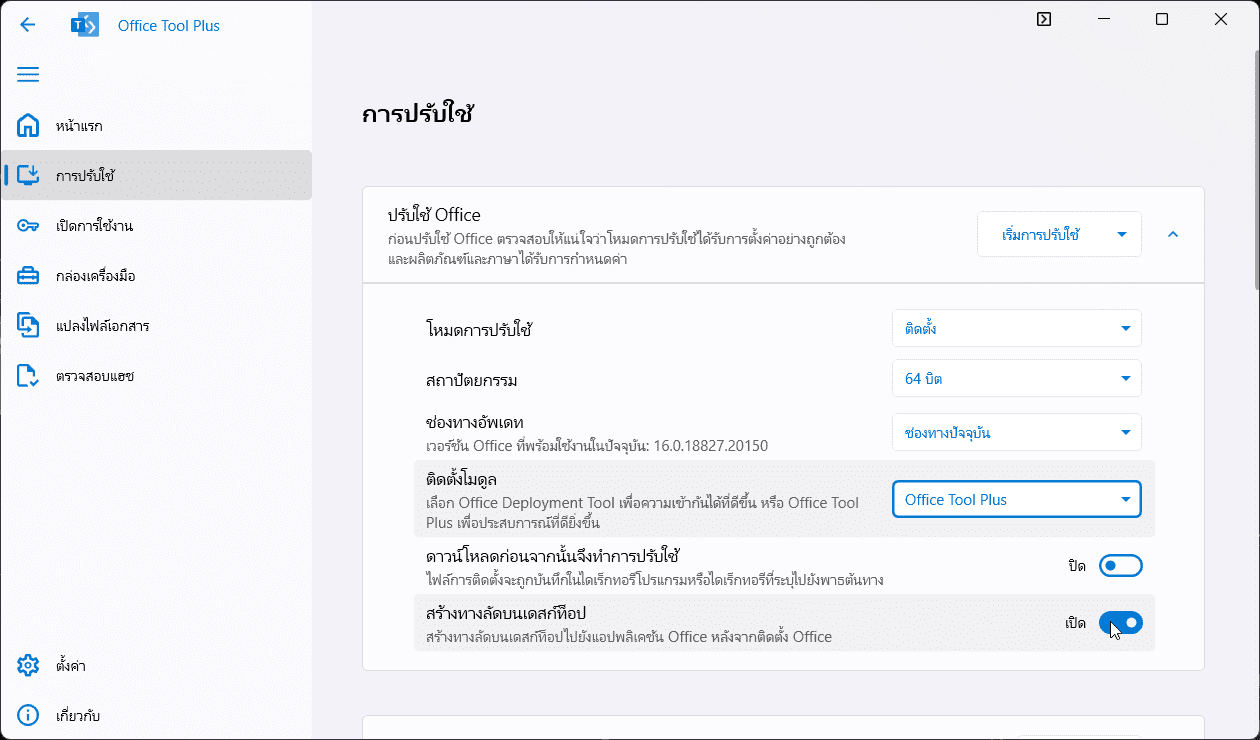
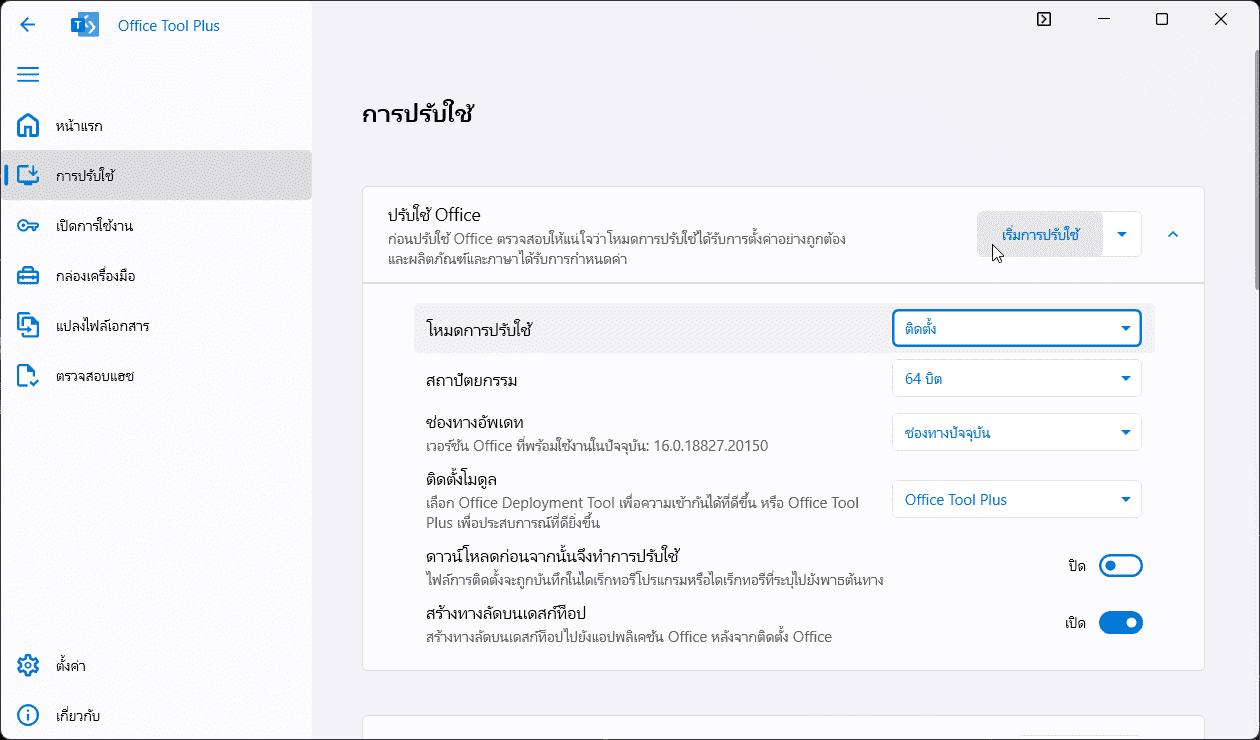
- Open the program. Office Tool Plus Then go to the page. Deploy (Deployment/Installation)
- Can be specified. Deployment mode Whether you want to install, download, or create an ISO file.
- Can be specified. Architecture You can choose between 32-bit or 64-bit.
- You can choose.Update Channel As desired
- You can choose. Deployment Tool Module I was planning to use the module of... Office Tool Plus Or Office Deployment Tool Microsoft's
- We recommend considering the following options. Download first, then apply.(Download first, then deploy) If this option is selected, the program will download all the installation files first before starting the actual installation process. If it is disabled (the default is Off), the program will download and install simultaneously. The advantage of... Download first, then install. This means we can pause or cancel the download midway and install it after the download is complete (even while offline). However, if the installation is simultaneous with the download, it cannot be paused midway. If there are internet connection issues such as slow speeds or disconnections, the installation may freeze.
- Choose to Create a desktop shortcut. okay
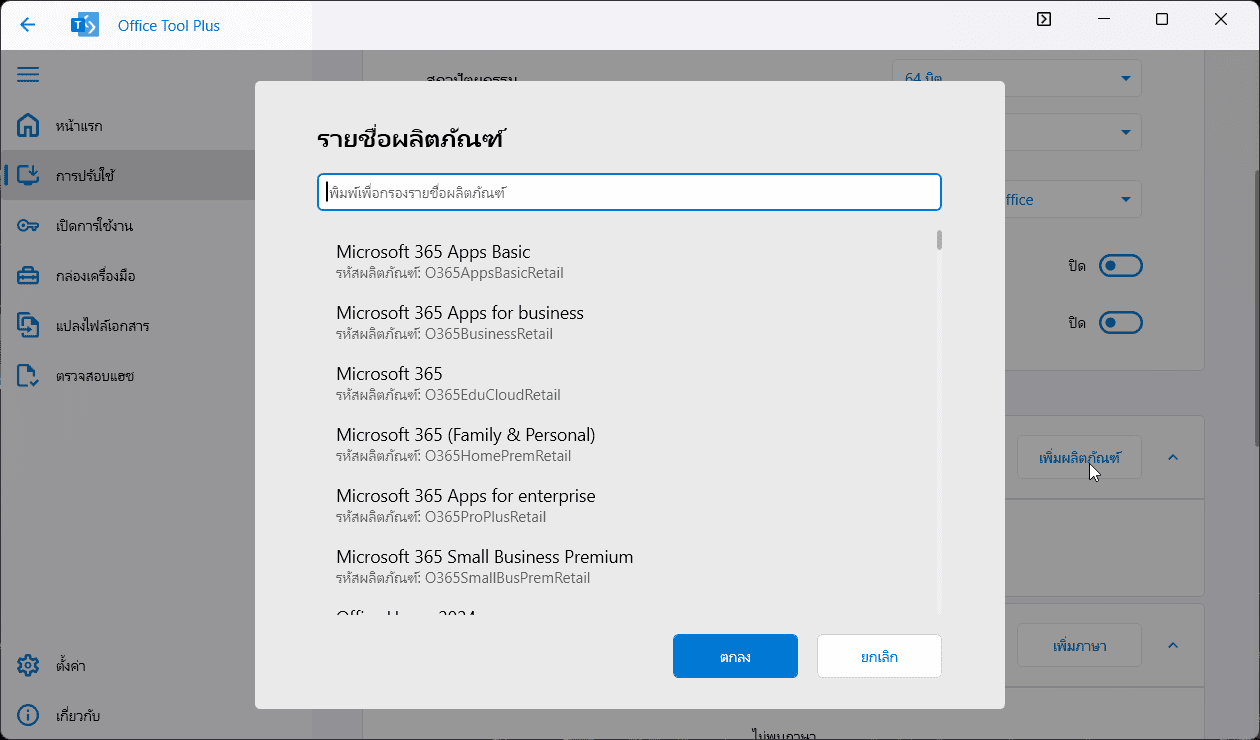
- Then, in the next section... Products Click here. Add product The program will display a list of several Office products to choose from, such as Microsoft 365 Apps, Office 2016 ProPlus, Office 2019 Standard/ProPlus, Office LTSC 2021/2024, as well as Visio and Project, in both Retail and Volume License formats, etc.
- For further customization, such as selecting only specific sub-applications, see here. Applications Then, select only the programs you need, such as Word, Excel, and PowerPoint. Programs that are not selected will not be installed on your computer.
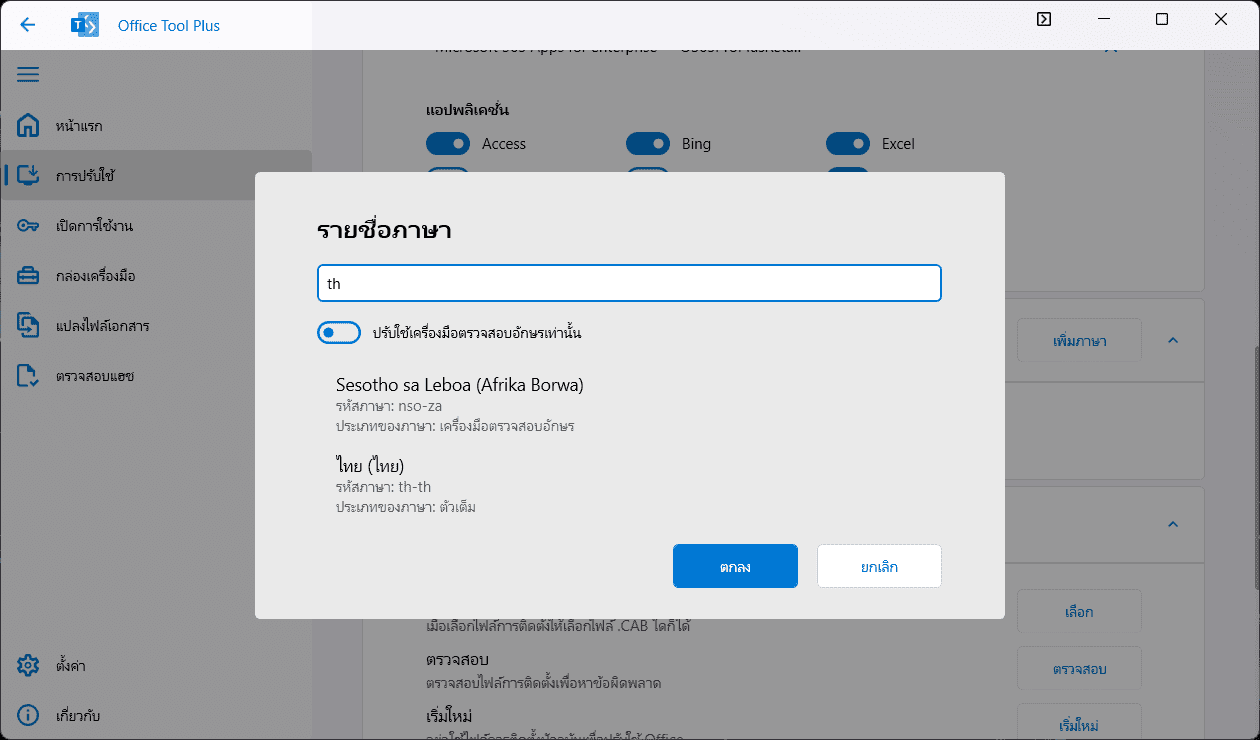
- In this section Languages Click here. Add language Then select the desired installation language, such as Thai or English (you can add multiple languages if you want Office to be available in multiple languages).
- Once everything is set up correctly, scroll to the top and then click the button. Start deploy Click the "Deploy" button in the upper right corner of the page to begin downloading/installing Office. Wait until the process is complete without closing the program or shutting down your computer.
- Once the Office installation is complete. You can open Office programs like Word, Excel, and PowerPoint from the Start menu or desktop shortcut as usual. However, if you haven't activated them, the programs will be in trial mode or prompt you to enter a license. We will discuss how to activate them in the next section.
Installing Office (Offline):
This is suitable for cases where you need to install on offline machines or download the file for later use on multiple machines. This method is not much different from the online installation method; it simply requires configuration. Deployment mode Be Create an ISO file. Before clicking the button. Start deploy
- Upon receivingOffice suite ISO files The desired file has arrived (e.g., a file named...). Office_Tool_Plus-16.x.xxxx.iso)
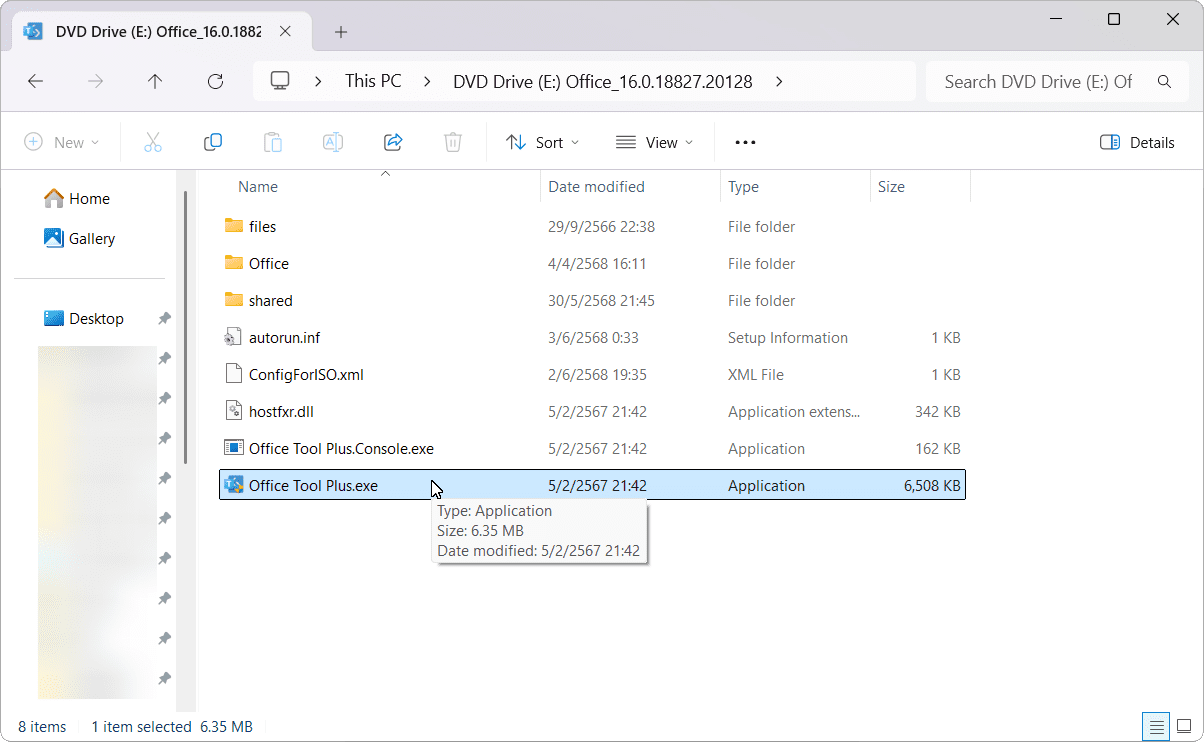
- Right-click the file. Office_Tool_Plus-16.x.xxxx.iso Then press Mount To open a file in a virtual drive.
- Double-click the file. Office Tool Plus.exe (Or right-click the file > press...) Open)
- Go to page Deploy (Deployment/Installation)
- Select. Products And Languages The desired installation (similar to the online installation) must match what is included in the offline installation files we have prepared. For example, if the ISO file contains only Office LTSC 2021 (Volume) in English and Thai, select only the Office 2021 Volume with en-us and th-th languages. If you select a product or language not included in the offline installation files, the program will need an internet connection to download the missing components, which will cause the installation to fail if offline.
- Configure other options (e.g., select sub-apps, architecture, update channels) as needed, then click. Start deploy To begin installing Office from an offline ISO file, you can start now.
- Wait until the offline installation is complete. Similar to the online version, if any errors are found, the program will notify you, and you can click to view the error code details to find out how to fix the problem (see section...). Troubleshooting common problems)
- Once the Office installation is complete. You can open Office programs like Word, Excel, and PowerPoint from the Start menu or desktop shortcut as usual. However, if you haven't activated them, the programs will be in trial mode or prompt you to enter a license. We will discuss how to activate them in the next section.
💡 Tip: If you're unsure which Office version to choose, Office Tool Plus is often recommended for general users. The latest version of Microsoft 365 Apps. Because you'll get new features all the time. However, if you're using Windows 7/8, please be aware that the system only supports certain versions of Office 2016 and Office 365. (Office Tool Plus will warn you or block it if your system can't handle it.)
Activating Office using Google Activation – Guide
How to use Ohook Activation
Ohook Activation It is a script that is part of a set of scripts. Microsoft Activation Scripts This can activate almost all versions of Microsoft Office and is very secure because it is open source on GitHub, with people constantly monitoring and reviewing it. The usage steps are as follows:
- Download the script package. Microsoft Activation Scripts which is in the form of a zip file named Microsoft-Activation-Scripts-master.zip
- Unzip the file. Microsoft-Activation-Scripts-master.zip
- Go to the folder. MAS > Separate-Files-Version > Activators
- Double-click the file. Ohook_Activation_AIO.cmd (Or right-click on the file and press Run as administrator)
- A black CMD window will pop up.Type the number 1. To select Install Oak Office Activation.
- Wait until the process is complete, then close the CMD window.

- Once Google Activation is complete, you can open Office programs such as Word and Excel from the Start Menu or the desktop shortcut.
💡 Tip: Normally, Microsoft Activation Scripts Including: Ohook Activation It is highly secure and will not be deleted or blocked by antivirus software in any way. However, if you encounter issues activating Office after installation, we recommend temporarily disabling your antivirus software to ensure a smooth activation process.
A quick and clean uninstall of Office.
Uninstalling Office
If your computer has an older version of Office installed and you want to install a new Office (or encounter problems installing Office due to conflicts with an older version), you can use Office Tool Plus to completely uninstall the old Office. Here's how:
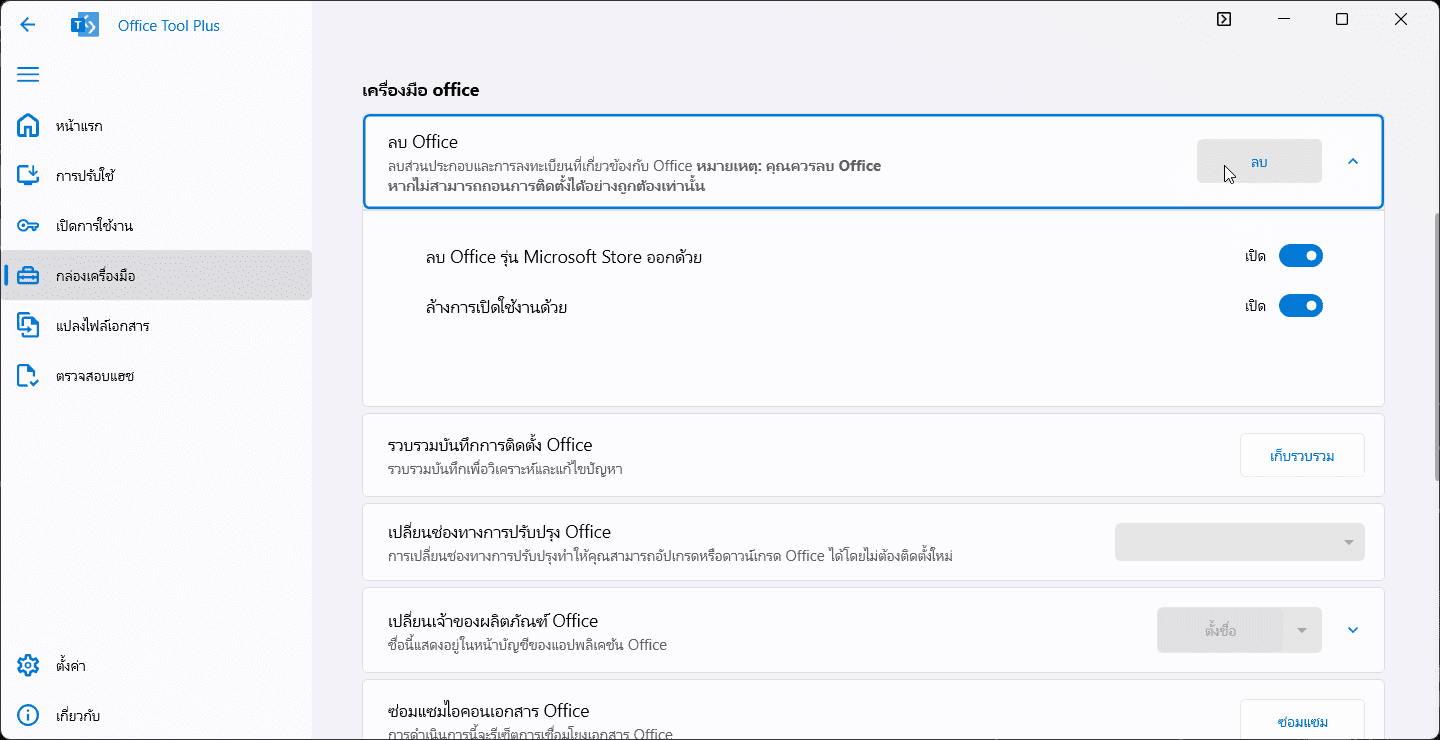
- Open Office Tool Plus.
- Go to the tab. Toolbox
- Scroll down to see the categories. Office tools
- Then, use the tools. Remove Office Please press Remove Then press Yes
- Wait until the process is complete. Restart the device. Once to clear pending services or files (usually not necessary).
- This tool supports removing Office. All versions Installed on Windows (from Office 2007 onwards)
- If you have Office installed via... Microsoft Store (Such as Office that comes with Windows 10/11) and you want to delete that as well, check the box next to the option. Also remove the Microsoft Store edition of Office.
- To clear existing activation data. You can check the options. Also clear activation. To delete all Office license and key information on the computer.
💡 Tip: In some cases, the Office uninstall tool may report an error or fail to uninstall immediately. Try... Press Remove Office again. Alternatively, you can manually uninstall Office via... Add/Remove Programs First, clean up the Windows installation, then use the Remove Office tool for final cleaning.
Other knowledge
Using the Activation menu – for those with a genuine license.
KMS setup and how to activate Office.
After installing Office via Office Tool Plus, the next important step is to... Enable (Activate) To make Office genuine and fully functional, Office Tool Plus has a page... Activate It offers several conveniences, including the following:
- Activation using a Microsoft 365 account or a genuine key (Online Activation): If you have a login-required version of Office installed (such as Microsoft 365 Apps), you can open the Office app and sign in with your licensed Microsoft account. Office will activate automatically in this case. For activation with... Product Key For retail (one-time purchase) versions, you can enter the key directly through the Office Activate window or use Office Tool Plus to install the key. The Office Tool Plus Activate page... Key Management > Install key You can enter the 25-digit key and press Install. The program will send a key installation command to Office, and Office will then verify it with Microsoft servers via the internet to activate it (the computer must be online).
- Phone Activation: This method is used when there is no internet access or the key cannot be activated online (e.g., a Volume MAK key that has exceeded its limit and requires phone confirmation). Office Tool Plus makes it easier by adding this feature on the Activate page. Licenses list (Office licenses list) There will be a button to copy. Installation ID (IID) This is for submission to Microsoft's automated response system. When you call customer service and enter this IID, you will receive... Confirmation ID (CID) Go back, then in the Office Tool Plus section... Key Management There is a slot. Install confirmation ID Enter the CID you received and press install. Office will then be activated automatically in phone mode. (This function saves you from having to open the Office UI and manually enter long numbers.)
- Activation via KMS (Key Management Service): This method is used for Office Volume License editions (such as Office LTSC or Office editions that organizations purchase licenses for by volume), which does not use direct account logins or keys like retail versions, but instead interacts with a server. KMS Whether within or outside the organization, the steps for using KMS through Office Tool Plus are: (1) Install the Volume license for Office first – go to the Activate page. Licenses management Select the correct Office license version (e.g., Office LTSC Professional Plus 2024 – Volume License) then press Install license The program will install the Volume license and enter... KMS Client Key (GVLK) The relevant information is automatically provided in Office; (2) Configure the KMS server – in the section… KMS management There will be a field to enter the address. KMS Host (You can enter either the domain name or the IP address of the KMS server) For example:
kms.example.comOr192.168.xxx.xxxIf the KMS uses a port other than the default 1688, you can add a colon after the host name, for example:kms.example.com:1688Once filled in, press... Set host; (3) Press the button. Activate In Licenses management, you can start connecting to the KMS server and activating Office. If everything is correct, Office will change its status to Activated.- Important Note: Activation via KMS will have a limited lifespan. 180 days The subscription will expire, but Office will automatically renew every 7 days (for another 180 days indefinitely) as long as the machine is connected to the network and has access to the original KMS server. Therefore, if you are using KMS, you should have a network connection to the KMS for at least 180 days.
- If an error occurs during the activation process via KMS, Office Tool Plus will report it. Error code And the message indicating the cause, which can be clicked on (in blue) to immediately find troubleshooting instructions (the program will open a webpage to the page with solutions for that error code). For example, a popular error case such as... The KMS host is not configured. A code will appear. 0x8007232B (DNS name does not exist) For example (see the next section for solutions).
- Office License Management: Office Tool Plus makes it easy to manage Office licenses and keys on your computer, such as:
- View a list of all Office licenses installed on your computer (both Volume and Subscription licenses). vNextAlong with information on the status/expiration date/linked account (in the case of vNext, such as Microsoft 365).
- Additional Office licenses can be installed by: Do not delete the original. (This allows multiple licenses to be used simultaneously on a single machine.) For example, if an existing machine has Office 365 but you want to install an additional Office 2021 Volume license to use KMS, you can do so. The licenses will co-exist.
- The program has... The KMS Client Key and Grace Key are pre-installed. This means that when we install a Volume or Retail trial license, Office Tool Plus will automatically insert these keys after installation (reducing the need to manually enter the keys). However, if we install other licenses manually (via a license file), we will have to enter the Product Key ourselves.
- There is a button. Uninstall all licenses To remove all Office license data from the computer (except for installed keys), use this function to "clear licenses" before reinstalling (this is rarely needed unless there are duplicate license issues).
- Managing Keys: In addition to installing the key as mentioned, Office Tool Plus also has a button... Uninstall all unactivated keys To delete the key that is still on the machine. Not activated Remove all (in case you have previously entered incorrect keys or multiple expired keys, so that none are left).
- Convert License/Edition: If you want to convert Office from a Retail version to a Volume version (because you want to use KMS) or change to a different SKU, Office Tool Plus supports this by installing the desired license (as explained above) and removing the old, unwanted key. The installed Office will then immediately "transform" to the new version according to the license you entered, without the need to uninstall and reinstall the program, saving time.
- Further instructions:
- Before activating Office. You should check that your Windows is properly activated. If Windows is not activated, some issues may arise with activating Office.
- If you've used Office Tool Plus to activate your Office and it's still showing a Trial/Unlicensed status, you may need to... Close and then reopen Office. New or Reboot the machine. once
- For those using Office 365 and Office Tool Plus displays the message “We noticed you just updated your license. Please reboot Microsoft Project…” (or another Office app), this means your local license has changed. Try using the tool. Reset Office settings to defaults In the Toolbox (see the next section), you can edit the Office settings status.
Managing Office licenses with Office Tool Plus.
This topic relates to page usage. Activate Office Tool Plus includes the following important features: Licenses management And Key management As we have already discussed some of these aspects, the following is a summary of license management details:
- View installed license information: On the Activate page, at the bottom, there will be a list. Office licenses list Displays all Office licenses installed on the computer, categorized by type. vNext licenses (such as Microsoft 365, Office 2019+ with an online account linked) and Office legacy licenses (For example, Office 2016/2019/2021 Volume or Retail licenses that are not linked to an account) You can see which licenses are included. Activated It shows whether the license is active (marked with a green checkmark) or has expired, as well as the username associated with the license (in the case of vNext).
- Installing additional licenses: To add a new license (e.g., add Visio or convert to a Volume), go to the section... Licenses management > Install license A list of products/licenses will be available to choose from, such as Office, Visio, and Project, in both Retail and Volume versions. Select the desired license and click Install. Office Tool Plus will then add that license to your Office system. Without deleting the original license. This means you can have multiple Office licenses on a single machine (Office itself will choose the correct license based on which program is open; for example, when you open Word, it will check which Word license is active).
- Example: Your computer has Office 365 installed, but you want to use KMS to activate it as well. You can. Install license This involves adding an Office LTSC 2021 Volume, then installing a KMS key and activating it (as described in the KMS section above). As a result, Office will have both the 365 and 2021 Volume licenses, and the Volume will show as active. (For security reasons, you may want to log out of your Microsoft 365 account first if you want the Office UI to display only the Volume license name.)
- Install the product key: In this section Key management There is a field for entering the 25-digit key as mentioned earlier, and be careful if there is an error. 0xC004F069 This error message appears when entering the key, meaning you've entered a key that doesn't match the license already on your machine. For example, you might have entered a Volume key but haven't installed the Volume License yet. (You need to install the Volume License first before entering the new key.)
- Revocation of keys and licenses: Besides the button. Uninstall all licenses There is also a button in the Key management section to delete license data (except the key). Uninstall all unactivated keys This is also for removing inactive keys, such as trial keys that have never been used or have failed to register. In the Office licenses list itself, if you select legacy licenses, there will be a button. Uninstall key To remove license keys one by one (for example, a MAK key was previously entered on the machine, but we want to remove it).
- Changing the license holder name (for Office 365): There is an advanced function in the Toolbox called... Change Office product owner Keep it for changing. Account name This appears in Office (on the Account page, where it says "This product belongs to:..."). Generally, this isn't necessary, except in organizations that want to display a different name. Further documentation is available for instructions.
In summary, the Activation page of Office Tool Plus functions as... License Control Center This tool allows you to easily see and manage all Office licenses on your machine in one place. It's very useful when troubleshooting activation issues, such as if activation fails due to an incorrect key; you can install the correct license and enter a new key through this page. Or, if you want to switch to KMS, you can do so from here.
Advanced Configurations and Customization
Advanced Configurations and Customization
For advanced users or IT administrators, Office Tool Plus also has a section... Advanced settings On the Deploy page, you can adjust the details of your Office installation in more depth and configure various settings:
- Advanced Deploy Settings: On the Deploy page, there will be tabs. Basic settings (Default) and can be switched to a tab. Advanced settings Yes (the toggle button is usually at the top or there may be a ⚙️ icon). When in Advanced mode, there will be additional options, such as:
- Office version – Select the specific Office version number if you want to install an older version or a specific version (Office Tool Plus will display a list of older builds that Microsoft has made available on that channel). For example, if you want to install Office version 16.0.103xx instead of the latest, you can select it from the drop-down. (Requires online connection to retrieve build information)
- Source path – The field allows you to specify a path directly to the Office installation files, but the developers state that… If the files already exist, it's better to use the "Select" button on the Installation files page rather than manually entering the path here. Because mistakes can happen.
- Activation settings – Settings related to activation that will be embedded in the config (for administrators only; these should not be adjusted in general installations). For example, they might be used to configure Office to automatically run KMS scripts or enter the product key after installation. General users do not need to touch this part.
- Application preferences – This section is very powerful because it allows you to set default settings for various Office applications, such as enabling/disabling macros, setting the default file saving location, and defining the default file format (e.g., making Word default to saving as .doc instead of .docx), etc. These settings will then be applied to all installed Office applications (and all users on the machine), as if a policy had been established.
- Others: There are other options that can be explored further in the Microsoft Office Deployment Tool documentation, such as specifying what to do after deployment, like restarting the computer, or installing Slides (an add-on plugin), etc.
- Creating an Office ISO file: In the side menu under the heading. Create Office ISO Office Tool Plus provides a function to help package Office installation and configuration files into a .ISO file. This is useful if you want to distribute the installation media to others or keep it for multiple installations. It supports both automatic unattended ISO creation with configuration and manual (user-required) ISO creation without configuration. You can find more instructions in the "Prepare / Use ISO command" document on the official website.
- Using commands via the Command Line: For those who want to write scripts or work headless, Office Tool Plus has a system. Application commands And Deploy/Activation commands This allows you to call various functions via the command line, such as issuing commands like...
deployTo install Office according to the specified parameters, the following command is issued:activateTo activate KMS, etc., you can press... Ctrl + Shift + P In the program, open the command window and type the commands according to the provided command guide (or run it).OfficeToolPlus.Console.exe(Outside is also acceptable.)
⚠️ Warning: Advanced settings are complex and may lead to installation errors if not understood. Therefore... Do not modify values beyond what is necessary. Especially in the Activation settings section, or directly editing the XML configuration, if you are unsure, you should use the default settings or consult the manual first. (Office Tool Plus itself also has a warning that...) “Don't change any settings that you can't understand.” (Keep it in mind)
Troubleshooting common problems
Troubleshooting common problems
While Office Tool Plus simplifies the installation and management of Office, users may sometimes encounter problems or errors, either from the program itself or the Office installer. Here are some common problems and how to fix them:
- Office installation stalled or stopped midway:
- If the installation progress bar stops at... 0-49% "Unusually long" usually means... The Office installer was unable to download the required files. The reason might be a problem with your internet connection: check the stability of your network or try switching to a different internet provider. Additionally, The "Download first, then deploy" option should be enabled.“ To reduce the chance of freezing due to internet disconnection (the program will download all files before installation, reducing the chance of freezing during installation), another option is to go to the section if you already have an offline installation file. Installation files and press Verify This allows Office Tool Plus to check the file's integrity, so that any corrupted files can be re-downloaded.
- If the progress bar is stuck at... 50-100% (Installation in progress) means... An error occurred while running the Office installer. In this case, if the installer has a button... Ignore/Continue Click to skip that error (skipping may disable some features, such as VBA, but the overall Office installation will be complete). If there is no error or you are unsure, you should try... Close all other programs that are open. Because sometimes other software (such as antivirus, or programs that use Office components) may interfere with the Office installation, try running the installation again. Also, try using the feature... Remove Office To uninstall Office if it's frozen or incomplete, first remove it, then reinstall it using Office Tool Plus.
- If you've tried everything and it still doesn't work (e.g., it freezes every time at 90-100%), it might be a problem with the Windows system itself. We recommend trying... Restart the device. Then reinstall it, or in the worst-case scenario, you might need to... Repair or reset Windows. (For example, resetting the PC) to clean the system before installing Office.
- Activation failed:
- If you encounter an error when activating via KMS... 0x8007000D: The data is invalid Or 0x8007007B (Filename syntax invalid) – This problem is often related to the Windows License Service. Please check. Time and date of the machine Check if the information is correct (a large time discrepancy will prevent KMS activation) and verify that the device can connect to the network normally, including... The configured KMS server is actually online. (You could try pinging or using a function.) Test KMS host (In the Toolbox to test the connection) then try using the tool. Reset Software Protection service In the Toolbox, reset the Windows license service (this will delete the KMS host and renewal policy values, and if any suspicious DLLs are detected). SppExtComObjHook.dll This file will be deleted (it often comes with pirated KMS emulators). After reconfiguring, try activating again.
- If an error occurs... 0x8007232B: DNS name does not exist - mean The KMS Host has not yet been configured. An incorrect KMS hostname or IP address on your machine may prevent Office from finding the server. To fix this, verify that you have entered the correct KMS name or IP address in Office Tool Plus (see the KMS section above). If a KMS host is not actually installed (none are available), you will need to provide a valid KMS server or switch to an alternative method. Additionally, you could try changing your machine's DNS server (e.g., using Google's 8.8.8.8) in case the KMS host is within a domain name that requires public DNS, and then try activating it again.
- If going up 0xC004F074: No Key Management Service (KMS) could be contacted. – This means the connection to the KMS server was unsuccessful. Please check your network first and make sure the KMS Host you are using is correct. Still working. (It may have expired or been disabled.) Then try resetting the Software Protection service using the same method as in the 0x8007000D case above, and try again.
- If going up 0xC004F069: product SKU is not found – That means... There is no Office license that matches the key being installed. (SKU not found) Please go back. Install license Enter the matching key first (for example, if you're trying to enter a Volume key but haven't installed the Volume License yet), then entering the new key should work.
- If going up 0xC004F015 / 0xC004F017: license is not installed – If your Office is already activated, you can... You can ignore this message. (Too many bugs reported) But if it's still not active, it means the activation process is incomplete. Check if you followed the correct steps (e.g., entered the key correctly). Otherwise, the key is invalid and you need to use a different key/purchase a valid license.
- case I opened Office and saw a message prompting me to link my account or purchase a subscription. Even though we've activated it via KMS/MAK: The issue might be due to settings within Office itself. Try using the tool. Reset Office settings to defaults (Reset Office settings) In the Office Tool Plus Toolbox, this reset will clear the Office registry and configuration settings, restoring them to factory defaults. This helps resolve issues where the Office UI is confused by the old license (for example, a suitable situation is when you were already using Office 365 and you switch to a permanent license, but the program still asks for a 365 login).
- Problems using Office Tool Plus, the program itself:
- If the program opens and the window is blank (no UI is displayed) or the program freezes: This problem has occurred on some machines because... Hardware acceleration .NET is experiencing issues with its graphics card drivers. The solution is to open Command Prompt and run the command...
"" \Office Tool Plus.exe" /enablehwacc falseTo disable hardware acceleration in the UI, then try reopening the program. If the freezing is resolved, update your graphics card drivers to the latest version to prevent future issues. - If the program is opened and a message appears... “Insufficient memory to continue the execution of the program” (Insufficient memory): The developer recommends trying this for this issue. Temporarily disconnect from the internet and then open Office Tool Plus. Wait until it boots up, then reconnect to the internet. (The problem might be due to the program trying to load something during startup and experiencing a bug.)
- If you encounter an error message related to... .NET Framework such as
''wminet_utils.dll' does not have all required functionsPlease do the following: Update the .NET Framework on your machine via Windows Update. Please complete the process first, then run the program again. (Office Tool Plus requires .NET 4.8 or higher.) - If the program crashes (closes) after using a command or feature, whether during Office installation or when encountering a query error code, try the following: Reboot Windows. Try once and then try again, because sometimes Windows itself has internal problems that can be cleared by restarting.
- If the program opens and the window is blank (no UI is displayed) or the program freezes: This problem has occurred on some machines because... Hardware acceleration .NET is experiencing issues with its graphics card drivers. The solution is to open Command Prompt and run the command...
- The "The path is null or empty" problem during Office installation/uninstallation: If Office Tool Plus displays this error, it means that some Windows system variables (such as...)
%ProgramFiles%Or%CommonProgramFiles%) Is missing or incorrect, causing the Office installer to be unable to find the path. The solution is to go to the page... Toolbox > Windows tools Then click to use the tool. Reset system variables To restore system variables to their default settings, try installing/uninstalling Office again. - The "Invalid Class" issue occurs when installing an Office license or running certain commands: This issue is caused by a problem with the Windows WMI system (a Software Licensing class is missing). The solution is to go to... Toolbox > Windows tools Then run it. Repair WMI components To allow the program to re-register all WMI components on the new machine, please try again.
- Other problems and approaches:
- If you can't install Office and you have the program... WPS Office (Or alternative Office suites) already installed on your machine, it's recommended to temporarily uninstall them. Based on some user experiences, these programs can interfere with Microsoft Office installation (e.g., some versions of WPS reserve Office file extensions or cause Office registry issues).
- Some software that is known to cause problems with Office installations include: Shadow Defender (Shadow Copy system), WinZiper/WinZip Versions that come with advertisements, etc., should be disabled or uninstalled first, then the computer should be rebooted, and only then should office be reinstalled.
- If you encounter strange error codes with unknown causes, Office Tool Plus has a button. Query error code The toolbox that helps find descriptions of the code (which may open a details window or launch the Windows troubleshooter) may provide additional guidance on how to solve the problem.
- Office Tool Plus has user communities such as the My Digital Life forum and GitHub. If you can't find a solution, you can ask your question through those channels, possibly attaching [the relevant documentation]. Installation log
This guide is compiled from official Office Tool Plus documentation and real-world user experience to cover various usage scenarios. We hope this guide will help you use the program confidently and efficiently resolve problems on your own.