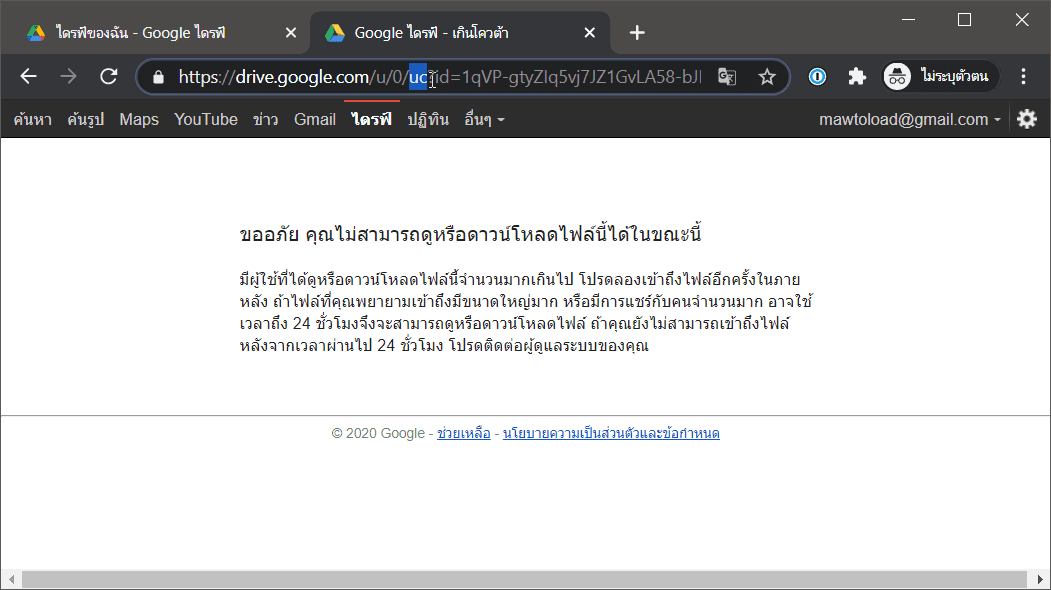
How to fix Google Drive quota exceeded, hit the limit, no download button, or download large files: Updated methods for 2024.
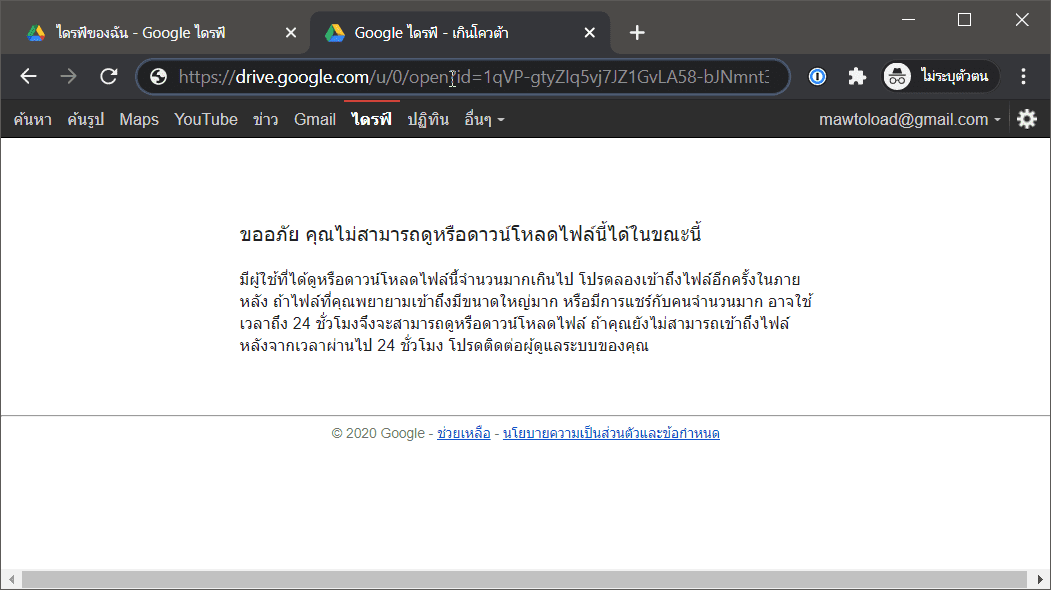
Many of you have probably encountered the problem of downloading files from Google Drive from various download sources and experiencing the message "Sorry, you cannot view or download this file at this time" because the file is being downloaded too frequently. The following method is the latest update on how to solve this problem.
- Change the text in the URL from... “"uc“" Let it be. “"open“" Then press Enter.
![2]()
![3]()
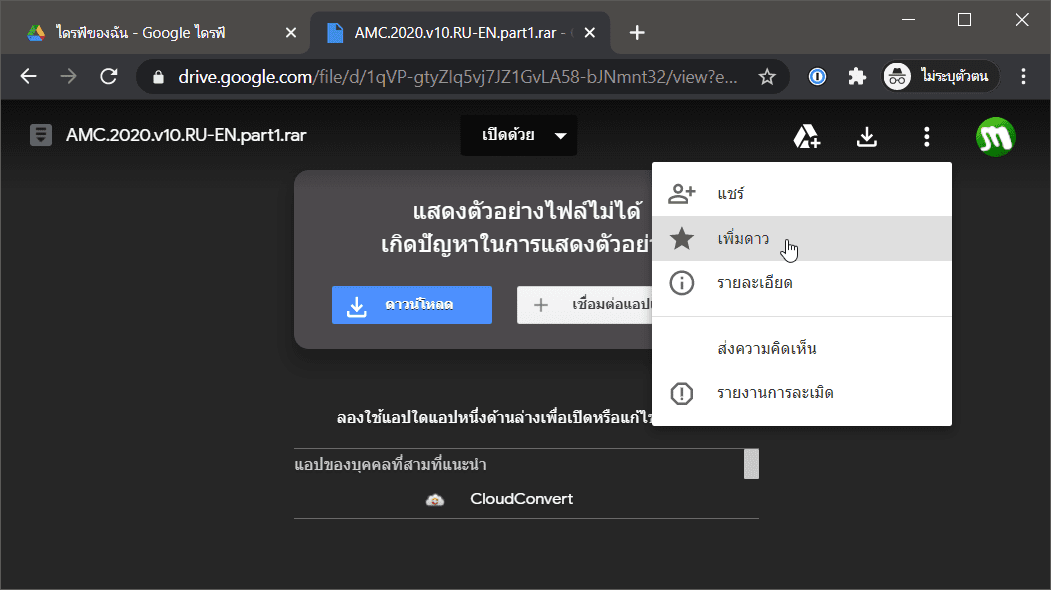
- This page will appear. Then click on the symbol. “"3 dots“" Then click. “"Add a star.“"
![4]()
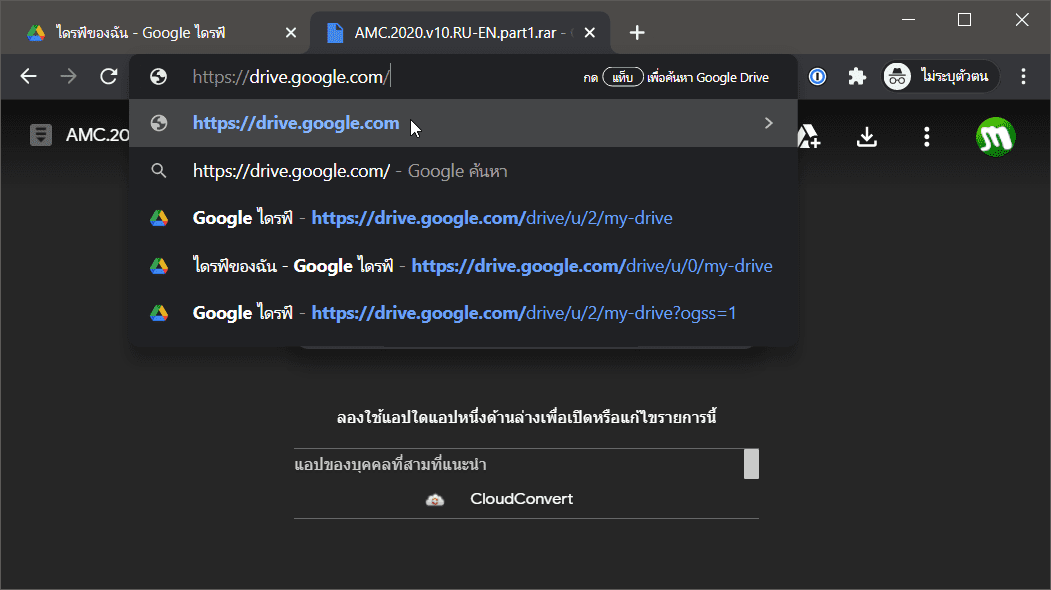
- Then go to Google Drive (or use this link) https://drive.google.com/ )
![5]()
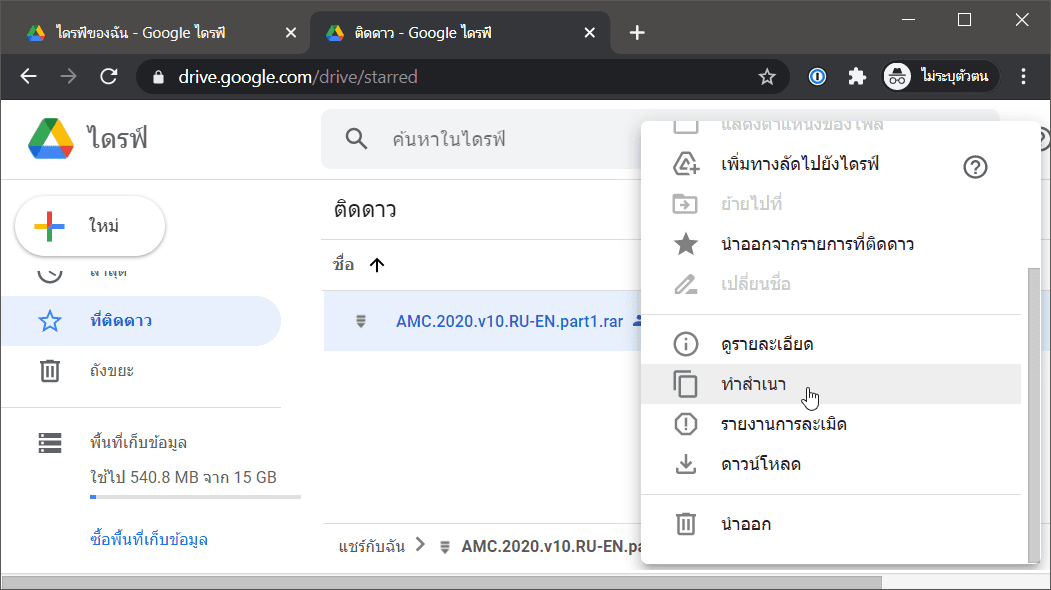
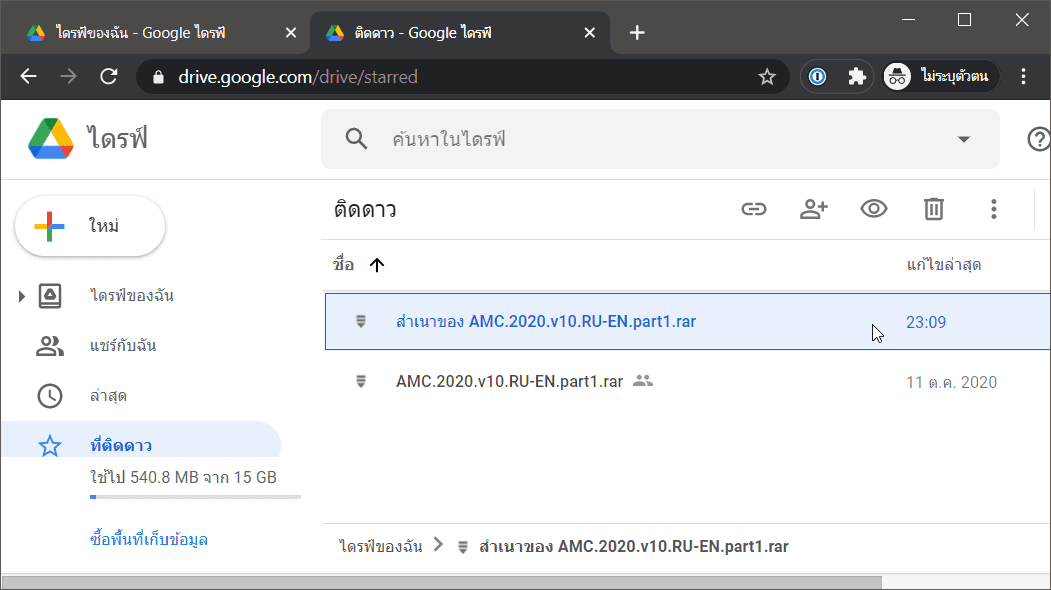
- On the Google Drive page, select the menu on the left. “"Starred“" ThenRight-click.Go to the file and select... “"Make a copy“"
![6]()
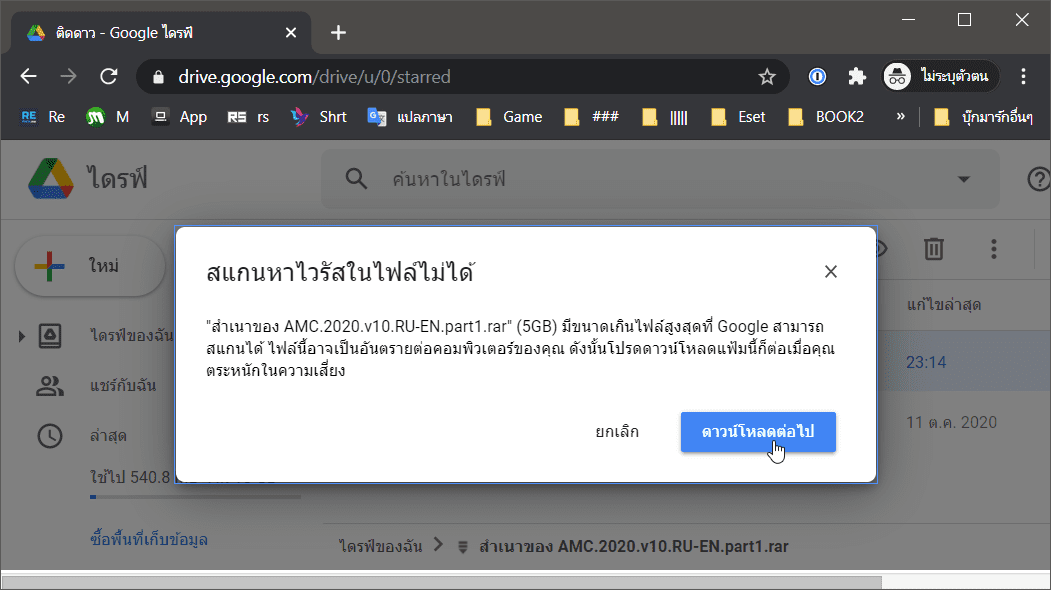
- Wait until a copy of the file is created (which may take up to 10 minutes) > then... Right-click.Copy the file and press... “"Download“" Then press “"Continue downloading.”"” Sure thing!
![7]()
![8]()
- Normally, after clicking "Next Download," the file will immediately pop up for download. But if it doesn't pop up, follow these steps.
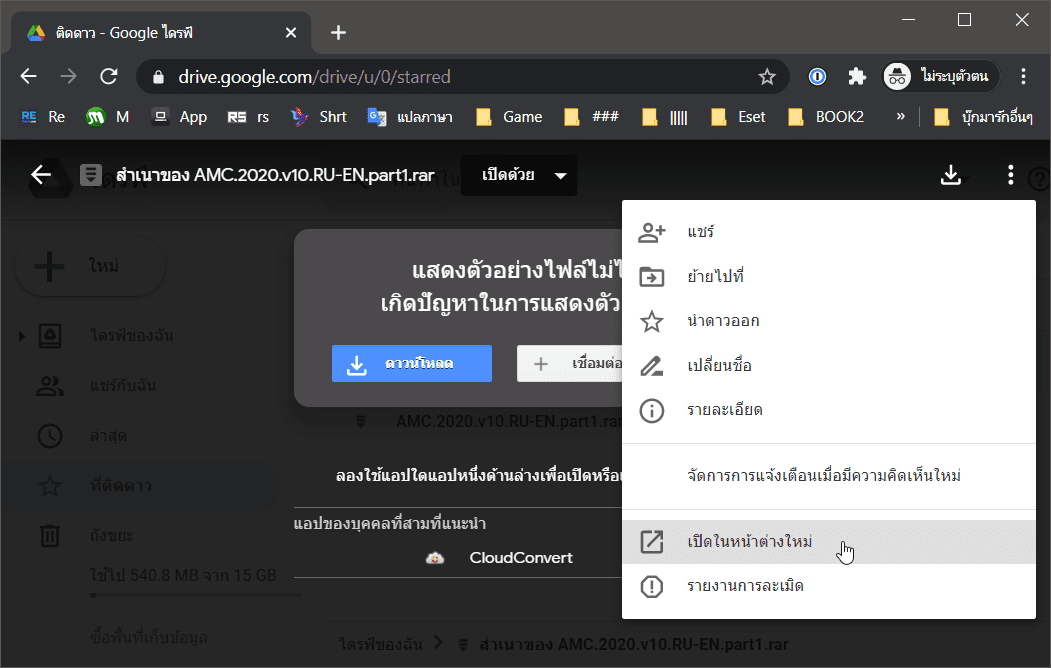
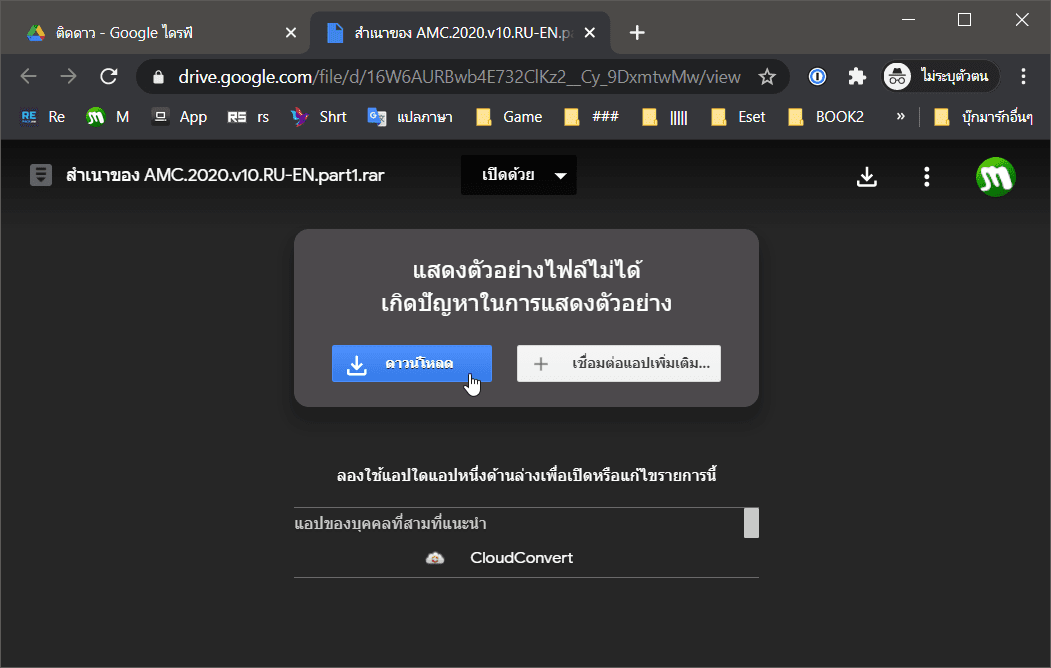
- “"Double click“"On the copied file > click on “"3 dots“" > Select “"Open in a new window“"
![9]()
- Then you can download the file as usual.
![10]()